


The other way, creating GTINs in your GS1 portal first, means copying each one back onto its variant. An app such as GS1 Assistant does the assigning in Shopify.
This applies if you sell your own products and license a GS1 company prefix, or are about to; barcodes bought from a reseller fit neither workflow. Only a handful of products? Skip to when assigning in GS1 first is the right call.
Should You Assign GTINs in GS1 or in Shopify First?
For a Shopify catalog of more than a few products, assign GTINs in Shopify from your GS1 company prefix with an app, then register them with GS1. Each GTIN is created on the variant it belongs to, so nothing needs matching later. Assigning in GS1 first suits a handful of products, or a catalog that lives mostly outside Shopify.
As of November 2026, Shopify doesn't assign GTINs, and it doesn't know which numbers in your prefix you haven't used yet. Your GS1 portal or an app keeps that list.
GS1 US explains its side in Import products and assign available GTINs, and Shopify explains the barcode field in Using barcodes for your products.
What Is the Difference Between Assigning in GS1 First and in Shopify First?
The difference is where each GTIN is created. Assign in GS1 first and you create it in your GS1 portal, then copy it onto the right Shopify variant. Assign in Shopify first and an app creates it on the variant, then Auto Sync or an import file takes it to GS1.
| GS1-first | Shopify-first | |
|---|---|---|
| Where GTINs are picked | Your GS1 portal (GS1 US Data Hub, its online portal, picks unused ones) | In Shopify, from your prefix, by an app |
| Where product details are typed | GS1 portal, then again in Shopify | Shopify, then sent to GS1 by Auto Sync, or by an import file after a few fields in its download window |
| Extra step | Match each GTIN to its variant | Accept Shopify's GTIN suggestion |
| How the barcode gets type GTIN | Set as you type it when Shopify recognizes it, or marked GTIN in the CSV | Saved as Custom by the app; you accept Shopify's GTIN suggestion |
| Registering with GS1 | Done first | Auto Sync usually sends on assign (Automation plan), or one import file |
| Each new product launch | Repeat every step | Assign, then register |
How Do You Assign GTINs in GS1 First, Then Copy Them Into Shopify?
In GS1 US Data Hub (GS1 US's online product portal), you import a batch of products and GS1 US picks unused GTINs for them. You then put each GTIN on its matching Shopify variant, in the bulk editor or through a CSV file. Other GS1 organizations run their own portals with their own steps.
GS1 US describes the import as a way to "add multiple products in bulk and have the system assign available GTINs." For a GS1 US member, the full method runs like this:
- Log in to Data Hub, go to My Products & Barcodes, and click Batch Import Products.
- Choose Download Assigned GTINs Template, pick your prefix, and enter how many products need GTINs. GS1 US fills the GTIN column for you.
- Fill in the required columns, such as each product's description and brand name, then upload it from the Import/Modify Products tab.
- Keep the template: it lists which GTIN you gave to which product description. Data Hub shows each GTIN as 14 digits with two leading zeros; Shopify's GTIN type accepts 8, 12, 13 or 14 digits.
- In Shopify, add each GTIN to its variant, in the bulk editor or the Variant Barcodes column of a CSV import. Our guide to bulk-assigning GTINs to Shopify variants covers the CSV mechanics.
Shopify helps with one part of step 5. Its help page says: "If you enter a barcode that's registered with GS1, then the barcode type is set to GTIN automatically."
Shopify catches some step 5 mistakes and misses others. The check digit is the last digit, calculated from the others:
- A barcode you set to type GTIN by hand. Shopify refuses to save a wrong check digit and shows "Checksum validation failed".
- A CSV whose "Variant Barcodes" value is marked as a GTIN (written
gtin:then the number). Shopify rejects a wrong check digit before the preview, with "GTIN barcode checksum validation failed". - Left as Custom, a typo saves without a warning.
- A GTIN already used on another item gets a warning, "In use by 1 other item", but still saves.
GS1 UK members work in "My Numberbank", GS1 UK's online portal, so the steps for GS1 UK barcodes on Shopify differ.
So what happens when every product comes in four sizes?
Step 5 is where the work piles up. Data Hub knows each product by its description, and Shopify knows variants. If you sell 200 products in 4 sizes, that's 800 rows you match to the right variant, line by line (an example, not a real store).
Paste a size onto the wrong variant and a real GTIN ends up on the wrong item. A check-digit check can't catch it, because the number itself is valid. Shopify's name comparison looks at the product, not the size.
And every new product launch means steps 1 to 5 again.
How Do You Assign GTINs in Shopify From Your GS1 Company Prefix?
Install an app that holds your prefix, such as GS1 Assistant, pick the variants, from one to your whole catalog, and assign GTINs from your prefix. The app writes each GTIN to the barcode field and shows how many numbers remain. Then accept Shopify's GTIN suggestion on the new barcodes.
With GS1 Assistant, the steps are:
- Add your GS1 company prefix in the app. Our GS1 company prefix setup guide walks through it.
- Find the variants. Filter by GTIN State is Missing GTINs, or use Select all for the whole catalog, then click Assign GTIN. The Missing filter also lists draft and archived products, so set the Status filter to Active before Select all.
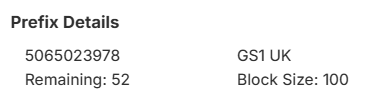
- Choose the prefix. The Prefix Details box shows the prefix, how many numbers remain, its GS1 organization and its block size.
- Accept Shopify's GTIN suggestion. Each new barcode shows "✦ GTIN" and "1 suggestion available". Click Accept on each barcode, or accept every suggestion at once in the products bulk editor, as Shopify's changelog describes.
Each size and color needs its own GTIN, and the app gives one to each variant you pick. GS1 US says "a new GTIN should be assigned for each product and variation of the product such as size, color, style, or package count."
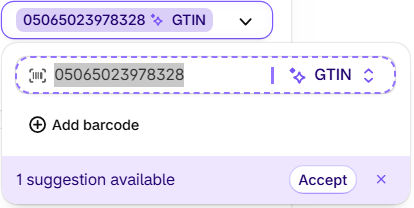
Shopify describes the suggestion this way: "If a saved barcode has the Custom type and its value is a valid GTIN, then GTIN is suggested as its type. You can accept or dismiss the suggestion."
The app saves the number; accepting Shopify's GTIN suggestion is what gives it the GTIN type.
GTINs you already used outside Shopify
Already created some barcodes directly in GS1?
Tell the app about them before you assign, including any you printed on packaging. Unless your prefix is connected to GS1, the app knows only the GTINs it assigned or found on your Shopify products. A GTIN you used somewhere else doesn't show in its count.
In our November 2026 test, deleting a product didn't return its GTIN to the count either.
Each prefix's page in the app has two settings to look at before your first assignment:
- Exclude skips the GTINs you enter, so the app won't assign them. Its tooltip reads: "Optional: Use the "Exclude" field to skip specific GTINs within the range." For a list, use Import GTINs to Exclude.
- Ranges sets where assigning starts and ends in your block.
In our November 2026 test, we typed the item number (the digits between the prefix and the check digit) into Exclude, and the app assigned the next number instead.
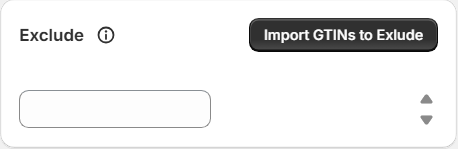
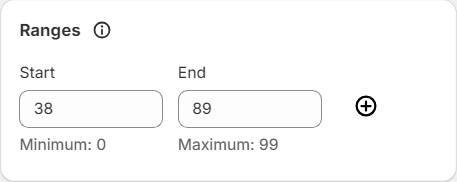
Already have GTINs in GS1 for products that have no barcode in Shopify yet? Put those on their variants by hand or by CSV, as in step 5 of the GS1-first method. Add any GTIN you keep off Shopify to Exclude, so the app never assigns it.
Auto Assign, the Shopify Flow action "Assign GTIN to Variant", can give new variants a GTIN. It needs the Automation plan and a Shopify Flow workflow for new products. In our November 2026 tests it didn't give every new variant a GTIN, even when Flow showed the run as completed, so check new variants with the Missing GTINs filter after it runs.
How Do You Register GTINs Assigned in Shopify With GS1?
Where your GS1 organization has an API (a direct connection for apps) and you're on GS1 Assistant's Automation plan, Auto Sync usually sends each product to GS1 when you assign. Everywhere else, download an import file in your GS1 organization's format and upload it to your GS1 portal, or type the products in there by hand.
Sync with GS1 only sends product information to GS1; it never assigns GTINs. It applies to prefixes connected to GS1, where you use it as the retry when a product didn't go across.
Do you need to export to GS1, or is it automatic? That depends on which GS1 organization licensed your prefix. As of November 2026, the list includes:
| Your GS1 organization | How products reach GS1 |
|---|---|
| GS1 Germany, Netherlands, Sweden, Brazil | On the Automation plan, Auto Sync usually sends them when you assign. An import file is also offered |
| GS1 UK, US, Canada, France, Norway, Romania | Download an import file, then upload it to your GS1 portal |
| Others | Neither: enter products in your GS1 portal |
For GS1 UK, the download window first asks for your NumberBank file from GS1 UK, so the GS1 UK route starts in My Numberbank. For GS1 US, you upload the file to Data Hub, GS1 US's portal.
After a product reaches GS1, GS1 decides when it shows in its records. GS1 Germany, for one, gives no time frame.
When Is Assigning in GS1 First the Right Call?
Assign in GS1 first when you have only a few products, sell mainly outside Shopify, or want GS1's records to hold each product before its GTIN appears anywhere else. For two or three products, a few pastes cost less than setting up an app, and nothing needs matching at scale.
GS1-first is the better fit if any of these is true:
- You have a handful of products. A few pastes take minutes, with nothing to install.
- Your products live mainly outside Shopify, on another platform or in wholesale only.
- Your GS1 organization has neither Auto Sync nor an import file in the app. Both workflows then end in your GS1 portal.
- You'd rather not add a bill. GS1 membership and the app are paid separately, so the app is extra spend on top of GS1's fee.
If that describes your store, GS1-first is the simpler choice, and you don't need an app for it.
What Does GS1 Assistant Do, and What Doesn't It Do?
GS1 Assistant assigns GTINs from your GS1 company prefix to your Shopify variants and writes each to the barcode field. Where your GS1 organization has an API, Auto Sync usually sends your products to GS1. As of November 2026, it builds an import file for 10 GS1 organizations, but it doesn't check your product data or work with reseller barcodes.
GS1 Assistant "assigns GTINs (UPC barcodes and EAN codes) from your GS1 company prefix to your variants, one at a time or in bulk, and writes each to the barcode field." It also "Flags missing, invalid and duplicate GTIN barcodes", and "Where your GS1 organization has an API, Auto Sync sends your products to GS1."
“The app now allows us to assign and manage GTINs directly from Shopify while dramatically reducing the amount of manual work required.”
A merchant using GS1 Germany wrote, in German:
“Sobald ich EAN-Codes zuweise, werden unsere Produkte automatisch mit GS1 synchronisiert”
Our translation: “As soon as I assign EAN codes, our products are automatically synchronized with GS1”
The review matches how a prefix connected to GS1 Germany works on the Automation plan: assigning usually sends the product to GS1, and Sync with GS1 is the retry.
GS1 Assistant stops at the numbers and the hand-off to GS1:
- It works only with your own GS1 company prefix, not barcodes bought from a reseller.
- It doesn't check your product data. It assigns the numbers you own and sends the details you have.
- Where your GS1 organization has no Auto Sync, you upload the import file to your GS1 portal yourself.
- If your GS1 organization is on neither list, the app can't send your products to GS1. Poland, for example, has no import file in the app as of November 2026. You enter products in your GS1 portal yourself.
- Auto Sync needs the Automation plan. The listing names "Auto Sync where your GS1 has an API" on Automation, and "API Synchronization (where supported)" on Growth. On Essential, you register by import file.
Plans, from the App Store listing ("Free to install. Usage charges apply."):
- Essential, $0 a month plus usage, supports prefixes up to 100 GTINs.
- Growth, $4.99 a month plus usage, supports prefixes up to 1,000 GTINs.
- Automation, $29.99 a month or $299.99 a year, supports all GS1 company prefixes.
The cap follows your prefix, not your catalog. If your prefix holds 10,000 numbers, you need Automation even for 50 products.
On Essential and Growth, usage charges for each month's GTIN assignments come on top of the plan price. The listing's usage table starts at "First Assign GTIN's Free" and shows each rate under "See usage prices".
Assign your next batch from your own GS1 prefix, right in Shopify. Skip matching GTINs to variants line by line. GS1 Assistant puts a GTIN on each variant you pick and keeps count of what's left in your prefix.
Frequently Asked Questions
How do I assign UPC codes to my Shopify products?
The same way as any other GTIN, because a UPC is a 12-digit GTIN. Assign them from your GS1 US prefix in Shopify and accept Shopify's GTIN suggestion, then download an import file in GS1 US's format and upload it to Data Hub. Keep the barcode type as GTIN, which Shopify accepts at 8, 12, 13 or 14 digits.
Do I need a GS1 company prefix before I can assign GTINs in Shopify?
Yes, GS1 Assistant assigns GTINs only from a GS1 company prefix licensed to you, and it can't use barcodes bought from a reseller. Shopify doesn't issue GTINs either. If you don't have a prefix yet, our GS1 company prefix guide covers how to get one and add it to the app.
I already created some GTINs in the GS1 portal. Can I switch to assigning in Shopify without reusing them?
Yes, if you tell the app about them before you assign. Type each one into the prefix's Exclude setting and the app skips it. In our November 2026 test we typed the item number, the digits between the prefix and the check digit, and the app assigned the next number instead.
When will GS1 show the GTINs I assigned in Shopify?
On GS1's own timing, once the product reaches GS1 through Auto Sync or your upload. For GS1 US, Data Hub lists any rows it couldn't import in a results file, so open it after each upload. In Verified by GS1, your company details show for almost every GTIN, and product details only where you've shared them.
Should I accept Shopify's GTIN suggestion on GTINs an app assigned?
Yes, for numbers from your own prefix that you assigned. Accepting changes only the barcode's type to GTIN, never the number. Accept them one at a time on each product, or all at once in the bulk editor, but check any suggestion on a barcode you didn't assign yourself first.


