
Is this guide for you?
Yes, if you print labels for products that come in sizes, colours or other variants. For example, when you:
- label new arrivals as they come in
- relabel a single returned item
- label bins or shelves
- send labels to a supplier
- need small labels, like jewellery labels
No, if you print shipping labels, or you dropship and never handle the item.
Left Foot Software makes Label Wizard, the app in these steps. It has 5.0 stars from 3 reviews on the Shopify App Store. The Shopify limits quoted here come from Shopify's own help pages.
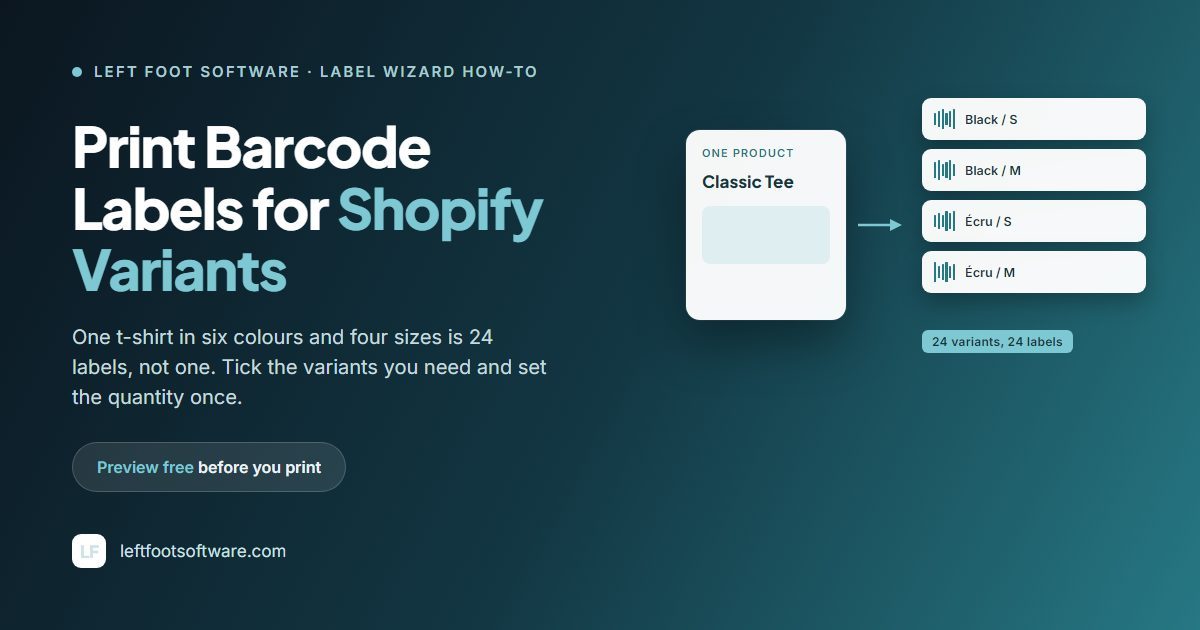
One product, 24 labels
In your Shopify admin, that t-shirt is one product. On your shelf, it's 24 items. Each one has its own barcode, so each one needs its own label.
Do this sum for your own range before you start. Twenty products in a full size run give you more labels than fifty products that come in one size.
Why Shopify's free barcode label app makes you pick each variant by hand
Shopify's own Retail Barcode Labels app is free. Its help page is clear about what it won't do:
"The app doesn't support automatic bulk printing or CSV upload options for selecting variants and quantities. You need to manually select each variant and quantity when printing labels."
It also prints in its own order:
"Labels are printed in alphabetical order based on product title."
So if you sorted your delivery by size, your labels come out sorted by name.
The app has 2.3 out of 5 from 476 reviews. Merchants with big ranges describe the same problem:
"Currently I have to go through 1-by-1 and input the number 1 for every barcode… I have nearly 2000 barcodes so this is time consuming to do it 1-by-1" (4★, 5 June 2026)
"you have to select each product individually, which is not functional at all. I have over a thousand different products in my shop" (3★, 9 May 2024)
Shopify's app isn't the only choice. If you want to compare label apps, our ranking of Shopify barcode label apps covers nine of them, including Label Wizard. The steps that follow use the one we make.
A CSV import won't print your labels
A CSV import puts barcode numbers into your products. It doesn't print anything. When you go to print, you're back to picking variants one by one.
Still need the barcode numbers themselves? See our guide to bulk-assigning GTINs to Shopify variants.
See it with your own products. Install Label Wizard, open the print screen and tick a few variants. Your first 20 labels every 30 days are free.
How to print barcode labels for Shopify variants in Label Wizard
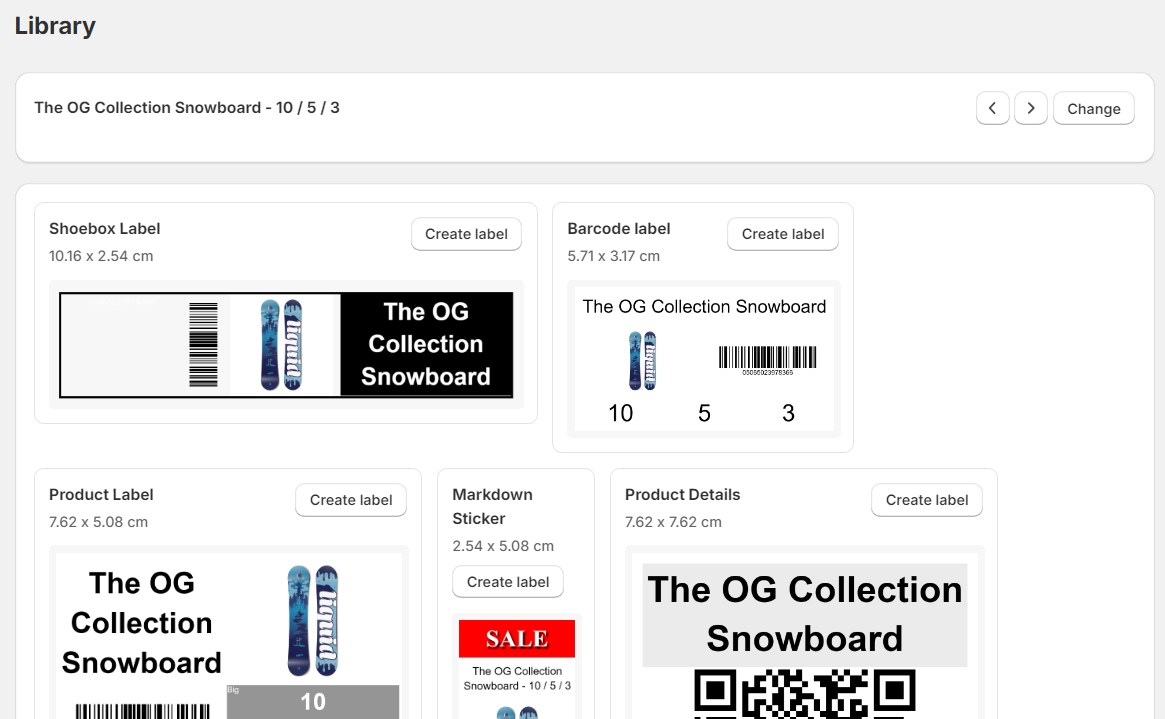
1. Pick a template or set your own label size
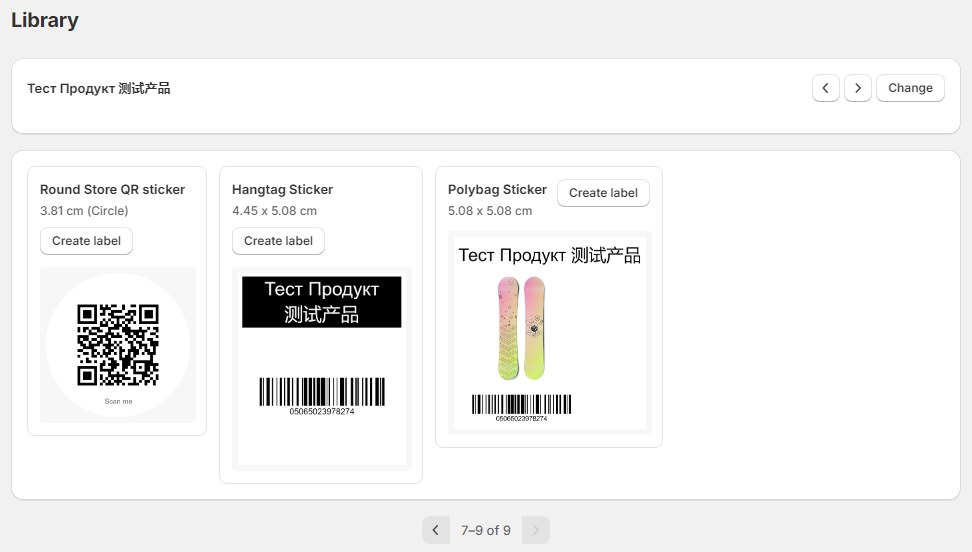
Start from a ready-made design in the Library, or set your own size. If standard labels are too big for your products, like jewellery, you can define your own sheet: rows, columns, spacing and margins.

“Just installed Label Wizard and was able to design and print professional looking labels almost immediately!”
2. Put the size and colour on the label
A label without the size and colour looks the same on all 24 shirts. Only a scanner can tell them apart.
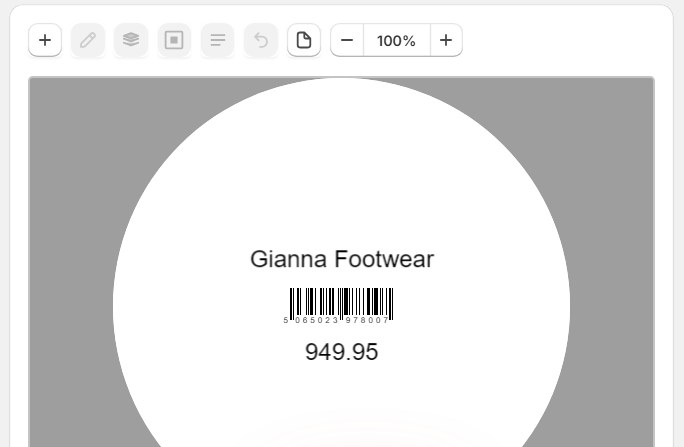
In the editor, add a text field and pick what it shows. Label Wizard reads 19 built-in fields from Shopify, plus your own custom fields (Shopify calls them metafields).
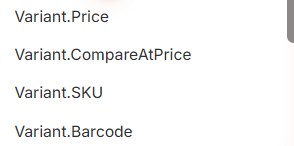
| From | Fields |
|---|---|
| Variant | Name · Price · Compare-at price · SKU · Barcode · Date created |
| Product | Title · Handle · URL · Tags · Status · Description |
| Store | Store URL |
| Size, colour and more | Up to three variant choices (Shopify calls them Option 1, 2 and 3), each with its name and its value |
| Not available | Vendor · Product type · Weight · Inventory quantity · Cost per item · Location |
Check the Not available fields before you design, so you don't plan a label around one.
- Price prints as a plain number, so add the currency symbol yourself, as text.
- Long names wrap onto a second line instead of being cut off.
Switch between variants in the editor to check each label before you print.

“The app allowed us to customize exactly to our requeriments and their customer support is excellente!”
3. Tick the variants you want
Open the print screen. Each variant has its own row, its own barcode and its own checkbox.
Nothing is ticked when you start. Tick every product, or exactly the ones you need.
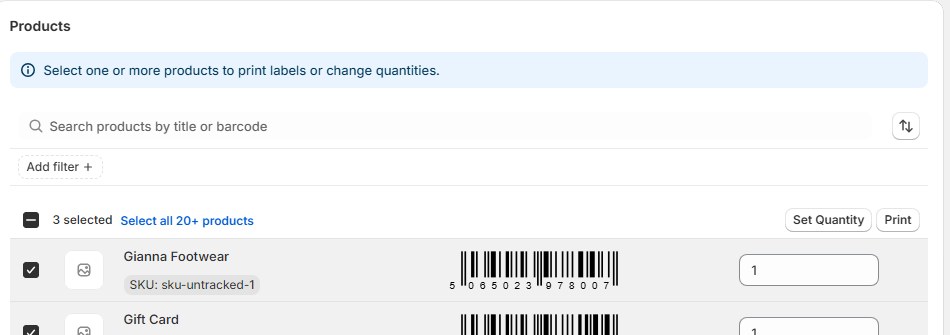
Search by product title or barcode to find a row fast. That helps when you're relabelling one returned item out of hundreds.
Because nothing starts ticked, you add what you need instead of clearing out everything you don't.
4. Set the quantity once
Tick your rows, click Set Quantity, and type one number. It applies to every row you ticked, so you don't type into each box.
The app doesn't read quantities from your Shopify inventory. You choose the number, and set different rows separately if they need different quantities.
Merchants say Shopify's free app can set label counts to match stock on hand. Label Wizard can't, so if you print one label per item in stock, you'll type those counts yourself.
5. Pick your sheet or roll, preview, and print
Label Wizard lists 400+ label templates from Avery, Online Labels and Uline, by part number and size. If yours isn't there, add it as a custom template.
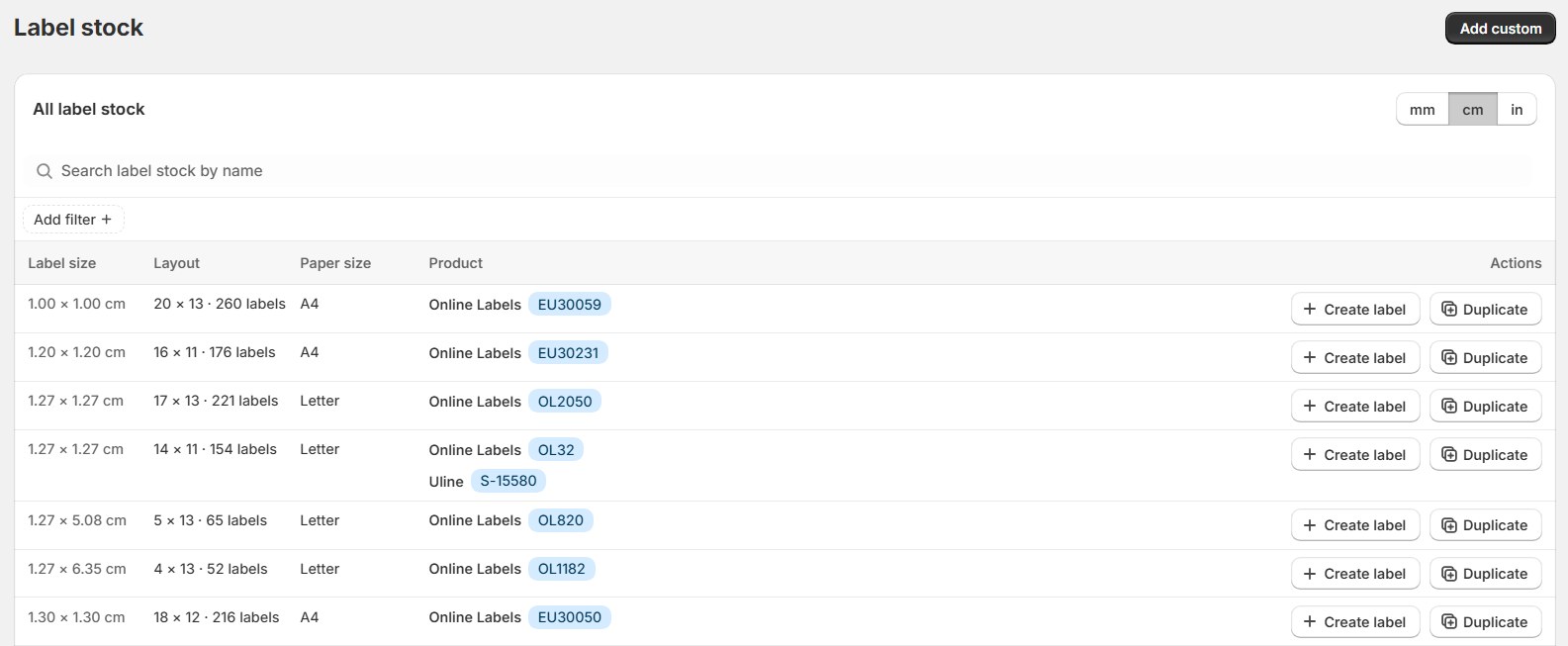
Printing to a roll printer instead? Label Wizard prints one label per page at 203 DPI (dots per inch, the print resolution) for roll printers, or a full sheet for laser.
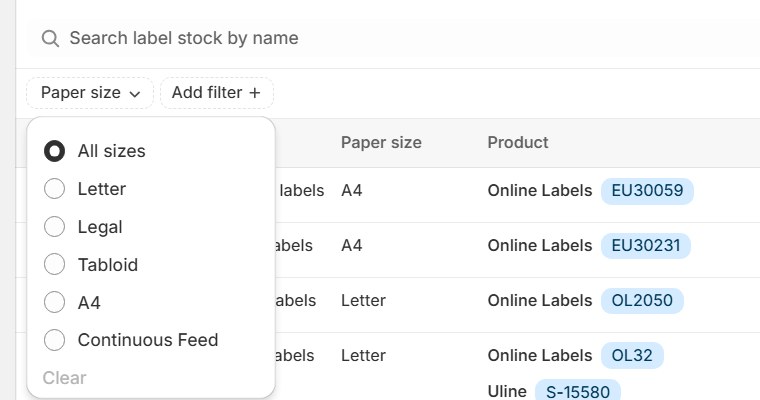
Then:
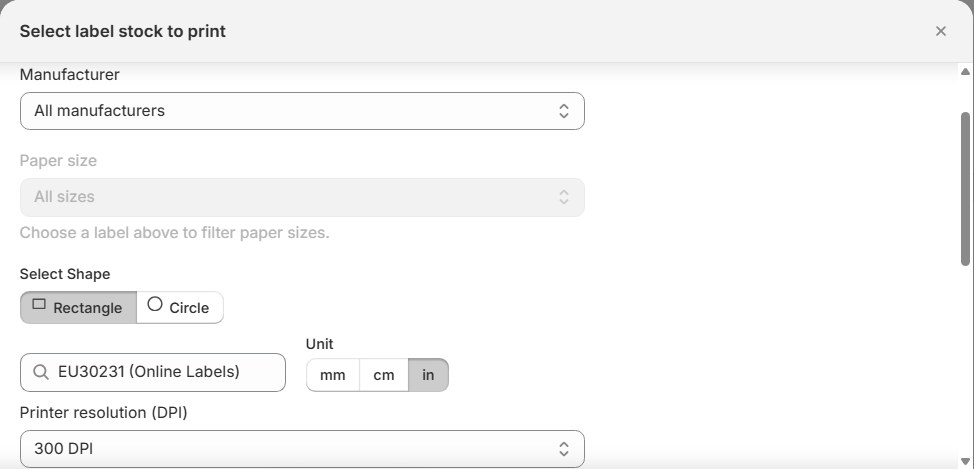
- Pick the template that matches the sheet or roll you have. The print dialog shows how many labels fit on it.
- Pick the printer resolution.
- Preview. The preview uses your real product data, and it doesn't use any of your free labels.
- Download the PDF and print. Labels for different products can share one sheet.
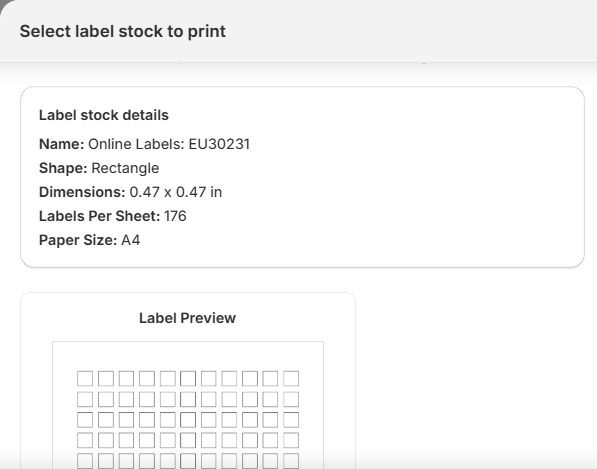
Not sure which sheet to buy? Our guide to Avery label sizes for Shopify products helps you pick one.
Accents, Cyrillic and Chinese characters
If your product or variant names use another alphabet, check your label app first. One review of Shopify's Retail Barcode Labels (2.3 out of 5 from 476 reviews) puts it bluntly:
"It has 0 support for Cyrillic alphabets, so it becomes absolutely unusable for our shop in Bulgaria." (1★, 12 July 2024)
Shopify's help page warns about it too:
"Product information containing special characters (such as ěščřžúů, Sanskrit characters like ā, or em dashes) might not display correctly on labels."
Variant names are where these characters show up: Écru, Größe: Groß, or sizes written in another alphabet.
We printed a label with the product name Тест Продукт 测试产品 to PDF, read the characters back, and found no substitution boxes.
Accented, Cyrillic and Chinese characters print exactly as typed. We've tested common accents like é and ß, but not letters like ě or ā, and not Greek, so we don't claim those.
Can Shopify POS print barcode labels?
No. Shopify's help page says:
"The Retail Barcode Labels app can be used to print labels from the Shopify admin on desktop and within the Shopify app. However, printing labels is currently not supported by Shopify POS."
It adds that on an iPad, "you can't print barcode labels through the Retail Barcode Labels app".
So print your labels before items reach the shop floor. Label Wizard also runs in the Shopify admin.
Can you print labels for a transfer or purchase order?
Not directly. Merchants ask for this a lot: at least 16 reviews of Shopify's app request it.
Label Wizard doesn't read transfers or purchase orders either. What you can do instead:
- search for the items that arrived
- tick them and set the quantity
- preview the sheet, then print
Frequently Asked Questions
How much does it cost to print variant labels?
Label Wizard's Pay As You Go plan has no monthly fee. Your first 20 labels every 30 days are free, then it's $0.03 a label up to 500, and less after that. Printing 333 labels costs about $9.39.
Pay As You Go limits how many label designs you can save. The Pro plan ($24.99 a month) removes that limit.
Which printers does Label Wizard work with?
Label Wizard makes a PDF, laid out for a full sheet or for a roll (see step 5). We haven't tested specific printer models, so check one label before you print a full run.
Will printing change my product data?
No. Label Wizard reads your product data to make the label. It doesn't write anything back, and the barcode that prints is the one already in your barcode field.
Related guides
- Need the barcode numbers first? Bulk-assign GTINs to Shopify variants.
- Need real GS1 numbers? Print GS1 barcode labels for Shopify.
- Choosing label sheets? Avery label sizes for Shopify products.