
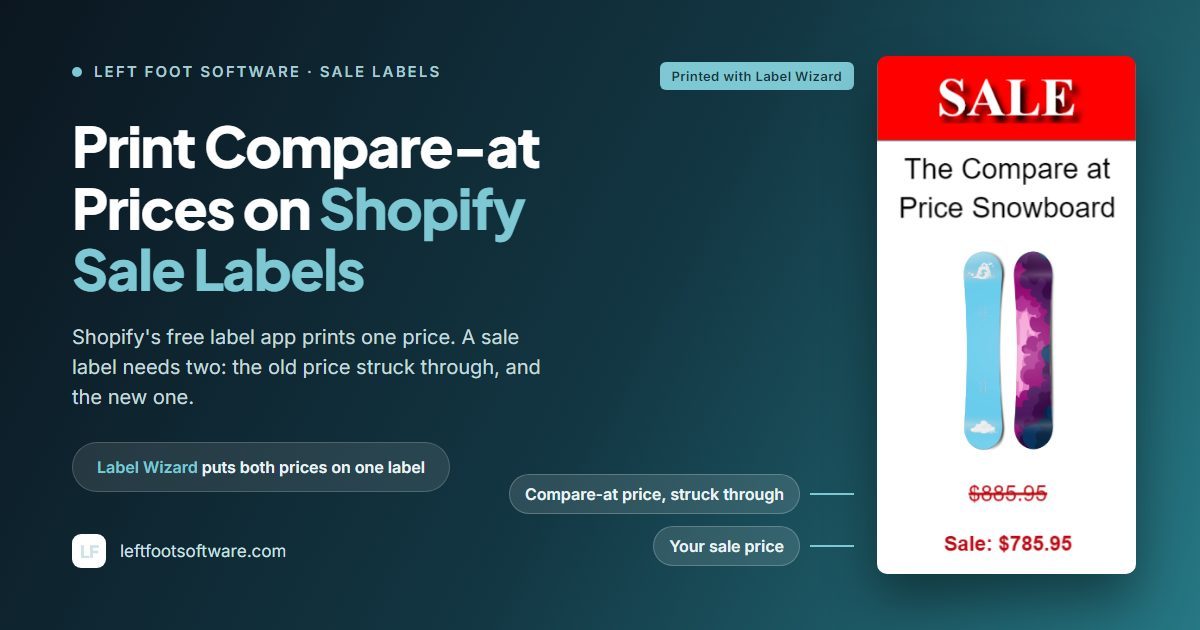
Is this guide for you? It's for stores printing labels for products on their shelves and rails, not the "Sale" badges your theme shows online. We make Label Wizard, one of the apps that print both prices, and it has 3 reviews so far.
How Shopify's Two Price Fields Map to a Printed Sale Label
Every variant in Shopify has two price fields that shoppers can see. Price is what the customer pays. Compare-at price is the original price you show beside it.
Shopify's help centre puts it this way: "To set a sale price, set the value of the Compare-at price field in your Shopify admin to the original price of the product." It adds one rule: "Make sure that the value in the Compare-at price field is higher than the value in the Price field to display the sale price."
So a sale label carries both fields:
- The compare-at price, struck through, so shoppers see what it used to cost.
- The price, larger, because it's what they'll pay.
Why Shopify's Retail Barcode Labels App Can't Print Both Prices
Asked whether a label could show the compare-at price, a Shopify staff member replied: "Adding the compare-at price is not currently possible on Retail Barcode Labels."
That was in November 2022. In the same reply, Shopify suggested looking into third-party label printing apps. Merchants were still asking in that thread at the end of 2024, and the app's reviews ask for it too:
"You would expect a Shopify Barcode Label App to be able to create a label that shows both the original compare price & the actual discounted price of an item." (1★, edited 16 January 2025)
"Can only show price, not compare at price?!" (1★, 25 April 2024)
Retail Barcode Labels has a 2.3 rating from 477 reviews. In October 2024, Shopify answered another merchant's request by saying labels "have very limited space", and that it would "pass on your suggestion to our developers".
None of the app's reviews since then say compare-at price has been added. If you're moving off the free app entirely, our guide to switching from Retail Barcode Labels covers keeping your barcodes.
See both prices on your own sale items. In Label Wizard, add the compare-at price to a label and preview it against a product that's on sale. Previewing doesn't use credits.
How to Print Compare-at Prices on a Sale Label
These steps use Label Wizard.
Design the sale label
- Set your sale prices in Shopify first. Put the original price in Compare-at price and the sale price in Price. Label Wizard reads your product data and doesn't change it, so the label shows what Shopify holds.
-
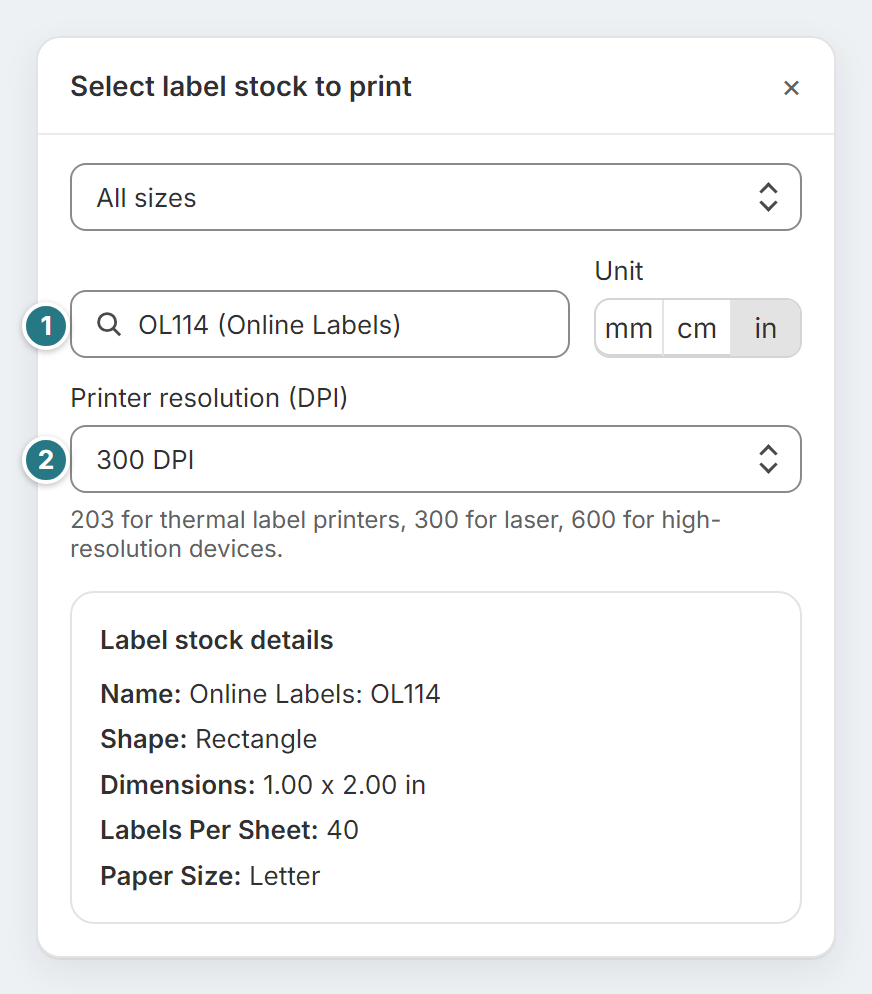
Set the label size. Pick your label's shape and size, or enter your own. When you print, you choose from 400+ label stock templates from Avery, Online Labels and Uline, or define your own sheet: rows, columns, spacing, margins.
-
Add the old price. Add a text element, choose Attribute, and pick
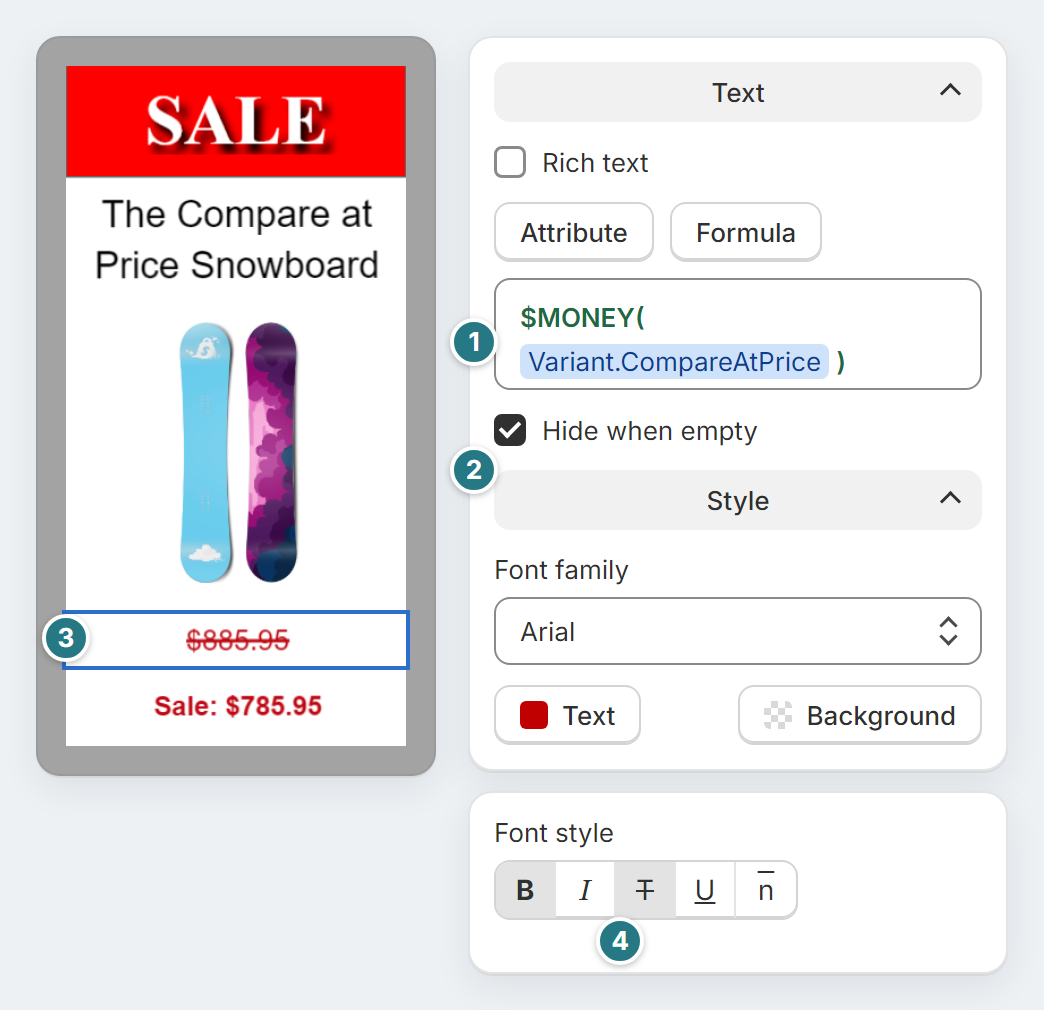
Variant.CompareAtPrice. Under Style, set its font style to strikethrough.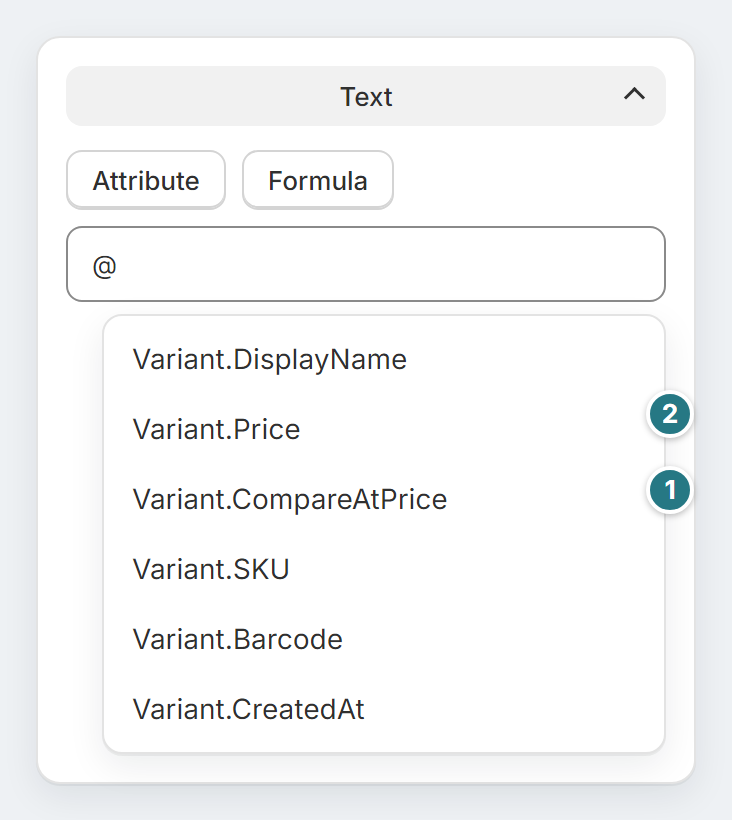
-
Add the sale price. Add a second text element bound to
Variant.Priceand make it the largest thing on the label. Add your own text, such as "Sale", and the barcode if this label replaces the old one. - Format the prices as money. On its own, a price prints as a bare number (2629.95); click Formula and wrap each price in
$MONEY(), and it prints as money, such as $2,629.95. - Tick Hide when empty on the old price. Then an item with no compare-at price prints without that line, typed text included.
Check it, then print
Preview against your real product data before you print, and switch the preview to an item with a compare-at price.
Check one thing: the struck-through price must be the higher one. If the lower number is crossed out, the two fields are swapped, and the label reads as a price rise.
Then open Print, choose your design and tick the items on sale. Label counts start at each item's available stock for the location you pick, up to 500 per product. Change any you need, pick your sheet or roll, and print one test label first.
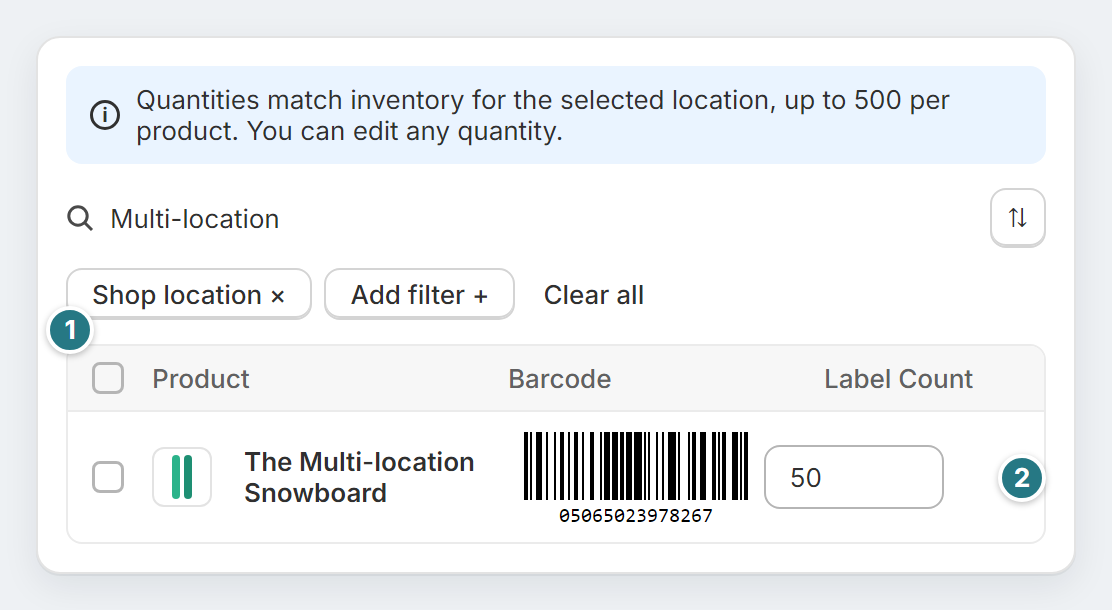
Items that are out of stock, or whose inventory isn't tracked, start at 0. Set those counts yourself.
Here's a real print from our demo store, with the old price set up as in steps 3, 5 and 6:
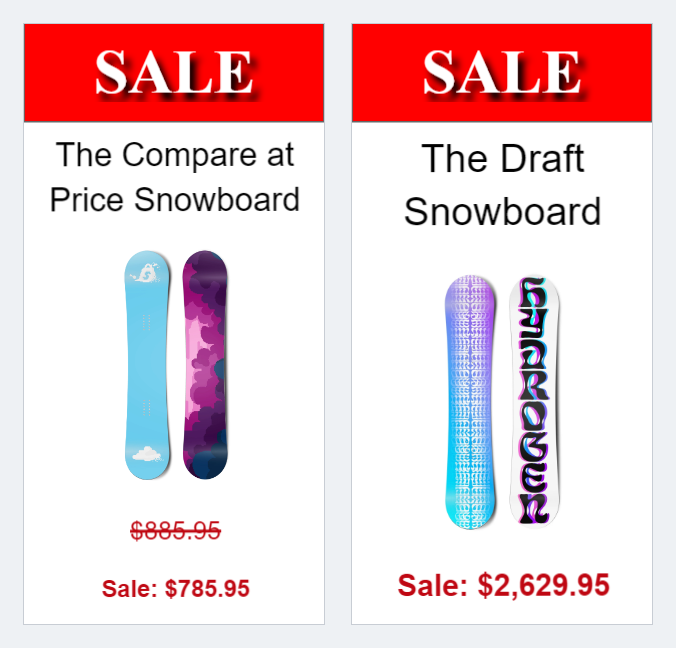
If the sale covers many sizes and colours, our guide to printing labels for Shopify variants covers picking the right ones.
Which Items to Print, and What to Do When the Sale Ends
Print sale labels only for the variants that have a compare-at price. For items at full price, print your regular label design instead.
If an item has no compare-at price and you ticked Hide when empty, the old-price line drops out. Your "Sale" text still prints, so a full-price item would go out looking discounted.
Label Wizard doesn't print from a collection. In Print, search by product title or barcode, or filter by product type, then tick the sale items.
When the sale ends, clear the compare-at price in Shopify, set Price back to the full price, and reprint your regular labels.
What Label Wizard Won't Do When You Print Sale Labels
- Create barcodes. It prints the barcodes your products already have and never invents one.
- Print a collection in one go. You pick the sale items in the print list.
- Save unlimited designs on Pay As You Go. That plan limits how many label designs you keep; Pro, at $24.99 a month or $199 a year, removes the limit.
- Run inside the POS app. It works in the Shopify admin.
If you're still choosing between label apps, our comparison of Shopify barcode label apps scores nine against the same tests.
Frequently Asked Questions
Can Shopify's Retail Barcode Labels app print the compare-at price?
No: a Shopify staff member wrote in 2022 that adding it "is not currently possible on Retail Barcode Labels". Shopify's latest public reply, in October 2024, said it would pass the request to its developers. To print both prices, you need a label app that reads the Compare-at price field.
Do sale items need new barcodes?
No. In Shopify the barcode is its own field on each variant, separate from Price and Compare-at price. Changing the price for a sale leaves the barcode as it is, so you only need a new label if you want the shelf to show the sale price.
How much does it cost to print sale labels with Label Wizard?
Pay As You Go has no monthly fee: your first 20 labels every 30 days are free, then $0.03 a label up to 500, and less after that. A sale needing 60 labels, plus one test label, costs $1.23 if you haven't printed others in those 30 days. Pro is $24.99 a month or $199 a year, with no charge per label.
Label counts start at your stock level, so check them before you print. On Pay As You Go, every label after the first 20 is charged.