


GS1 Assistant adds a Flow action, a task a workflow can run, called Assign GTIN to Variant. It can give each new variant the next GTIN from your own GS1 company prefix (the block of numbers you license from GS1), on the Automation plan.
Across our tests, it gave a GTIN to 7 of 13 new variants, yet Flow showed every run as completed.
This is for you if you make your own products and own that prefix. No prefix yet? Start with our GS1 company prefix guide.
Bought barcodes from a reseller? This setup isn't for you, because GS1 Assistant works with a GS1 company prefix only.
Can Shopify Give New Products a GTIN Automatically?
Not by itself, because Shopify doesn't know which numbers in your GS1 prefix you haven't used. Shopify Flow can run GS1 Assistant's Assign GTIN to Variant action on each new variant, on the Automation plan. In our November 2026 tests, it missed some new variants, so check every one.
In Flow, a trigger is the event that starts a workflow, and an action is the task the workflow then runs. Shopify's Flow guide covers the basics.
How to Assign GTINs to New Products by Hand, and Where It Stops
Without an app, every launch means doing this for each variant:
- Open your list of GS1 numbers and pick the next one you haven't used.
- Type it into the variant's Barcode field, not the SKU field. Our SKU vs UPC guide shows the difference.
- Choose the type GTIN. Shopify then checks the check digit (the last digit, calculated from the others) and refuses a wrong one with "Checksum validation failed". Left as Custom, a wrong one saves with no error.
- If you left the type as Custom, accept Shopify's GTIN suggestion.
- Mark the number as used in your list.
Shopify does warn you about a duplicate while you type: "In use by 1 other item." It still lets you save.
Say you launch 20 products a year with 6 variants each (an example, not a real store). That's 120 barcode fields, each one a chance to reuse or mistype a number.
A field you skip shows up later as a missing-GTIN issue in Google Merchant Center. As of November 2026, for parcels worth €150 or less to EU customers, it can also mean a Shopify shipping label you can't buy until the variant has a GTIN.
What You Need Before You Set Up the Workflow
Check these before you build anything:
- A GS1 company prefix with numbers left. GS1 Assistant shows the count: a "Remaining" column on the Company Prefixes page, and "Remaining" in each prefix's details.
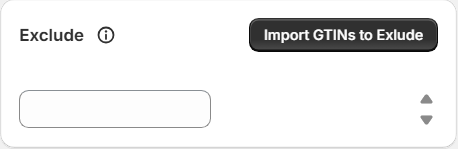
- The numbers you've already used, on the Exclude list. If you've already given out numbers in your GS1 account, printed them on packaging or listed them on Amazon, enter them in the prefix's Exclude field in GS1 Assistant. Its tooltip says the field is there "to skip specific GTINs within the range." There's also an Import GTINs to Exclude option. In our test, we entered an item number (the digits after the prefix), and GS1 Assistant skipped it and assigned the next one.
- Shopify Flow. Shopify's Help Center calls it "a free app available on the Basic, Grow, Advanced, and Plus plans."
- GS1 Assistant on the Automation plan. Auto Assign and GS1 Assistant's other Flow actions need it.
- Your existing products done first. The workflow starts only when a variant is added, so give the products you already have their GTINs in one pass. Our guide to bulk-assigning GTINs to Shopify variants shows how.
GS1 Assistant's Missing GTINs filter lists the variants without one, so you can select them and assign in one go.
That one pass doesn't need the Automation plan. Essential ($0 a month plus usage charges) supports prefixes up to 100 GTINs, Growth ($4.99 a month plus usage charges) up to 1,000, and Automation ($29.99 a month) all GS1 company prefixes. On Essential and Growth, your first GTIN assignment is free.
If your store has more than one prefix, check which one the new GTINs came from, because the action has no field for choosing a prefix, and GS1 Assistant's Configuration page has no setting for it either.
Each GTIN contains the prefix it came from, so compare the new barcodes' first digits with the prefixes on GS1 Assistant's Company Prefixes page. In our November 2026 tests, the store had two prefixes and every new GTIN came from the same one, but we didn't test how the app picks.
How to Auto Assign GTINs to New Products With Shopify Flow
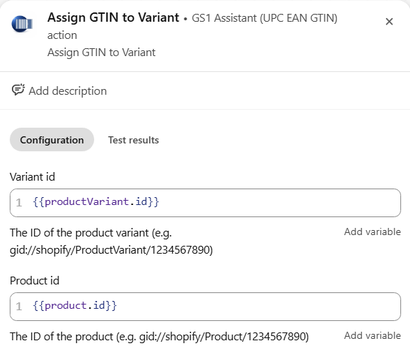
In Shopify Flow, create a workflow with the trigger Product variant added. Add GS1 Assistant's action Assign GTIN to Variant, set Variant id to productVariant.id and Product id to product.id, then turn the workflow on. The action needs GS1 Assistant's Automation plan, and you still check each new variant afterwards.
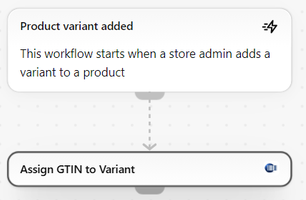
The workflow has one trigger and one action. Build it in four steps:
- In Shopify Flow, create a workflow and choose the trigger Product variant added. Shopify's Help Center says it "affects variants created by any method, such as adding a new product, creating variants in existing products, duplicating variants, or bulk actions."
- Add an action. Under the app group GS1 Assistant (UPC EAN GTIN), choose Assign GTIN to Variant.
- Fill the action's two fields with Add variable. Set Variant id to
{{productVariant.id}}and Product id to{{product.id}}. - Turn the workflow on.
The finished workflow is short: the trigger, then the action.
Does it work every time?
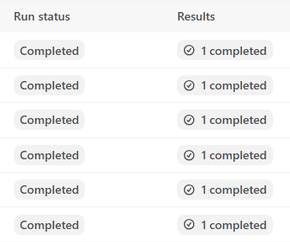
In November 2026, we tested this exact setup on five new products and on two sizes added later. It gave a GTIN to 7 of the 13 new variants, and Flow showed every run as completed, the misses included. The other 6 kept empty barcode fields.
Don't use the Product created trigger for this. In our November 2026 test, a workflow with Product created and this action marked its run "Completed", but neither size of a two-size product got a GTIN. Use Product variant added, which runs once for each variant, and check the variants either way.
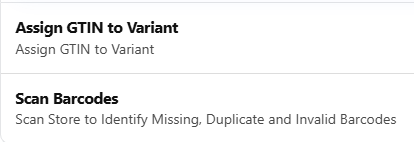
The same app group has a second action, Scan Barcodes ("Scan Store to Identify Missing, Duplicate and Invalid Barcodes"), and GS1 Assistant also offers a Flow trigger called Scan Result. You don't need either for this workflow.
How to Check That Every New Variant Got Its GTIN
Check after every launch, because a completed run in Flow doesn't prove a GTIN arrived. In our November 2026 tests, runs that left variants empty were still marked completed. Open GS1 Assistant's GTIN Manager, filter to Missing GTINs and Active, select the variants the workflow missed, and choose Assign GTIN.
So how do you find the variants Flow missed?
In GS1 Assistant, after the workflow has run:
- Open the GTIN Manager and set the filter to Missing GTINs. It lists every variant without a GTIN.
- Set the Status filter to Active before you select anything, because the Missing GTINs count also includes draft and archived products. If your new product is still a draft, set Status to Draft instead.
- Select the variants the workflow missed, or use Select all to take every one in the list.
- Choose Assign GTIN, and GS1 Assistant assigns GTINs from your prefix to the variants you selected.
- Open the Missing GTINs list again and confirm your new variants are no longer in it.
It's the same Missing GTINs filter you use for your existing products.
To spot-check a product in Shopify instead, open it and look at each variant:
- Expand Barcodes on the variant. When the workflow did assign a GTIN in our test, it already had the type GTIN.
- If a variant shows the strip "1 suggestion available", click Accept, so the barcode carries the GTIN type.
- If a variant's barcode field is empty, assign it in GS1 Assistant as above.
Our test variants started with empty barcode fields. We didn't test a variant that already had a barcode, so check those too.
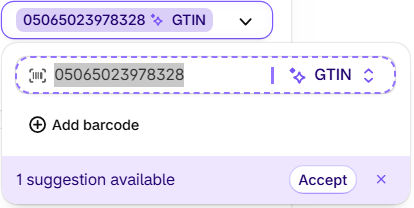
If many variants show the suggestion, accept them all at once in the bulk editor instead of one by one. The suggestion is part of Shopify's GS1 barcode check.
Why Does Flow Say "Completed" When a Variant Has No GTIN?
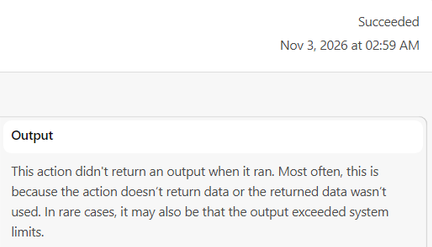
In our November 2026 tests, Flow marked every run "Completed", including the runs that left a variant without a GTIN. The run history lists one run for each variant. Open a run that missed, and both steps still say "Succeeded".
The action's output read "This action didn't return an output when it ran." on every run we opened, including runs that did assign a GTIN, so that line tells you nothing either way. The barcode field is the only proof.
Two jobs stay with you: checking every new variant after the workflow runs, and registering the GTINs with GS1. The workflow also needs the Automation plan.
Let Flow assign GTINs from your own prefix, then catch any it missed with the Missing GTINs filter. Auto Assign needs the Automation plan ($29.99 a month).
Do GTINs Assigned Through Flow Still Need Registering With GS1?
Yes: assigning a GTIN puts it on the variant, and registering tells GS1 which product it belongs to. Register Flow-assigned GTINs as you register any GTIN. GS1 Assistant gives you an import file in your GS1 organization's format (it covers 10 of them), and you upload it to your GS1 portal, such as Data Hub for GS1 US.
For GS1 UK, GS1 Assistant first asks you to select the file you exported from My Numberbank, GS1 UK's barcode dashboard, and updates that file.
As of November 2026, GS1 organizations with Auto Sync include GS1 Germany, Netherlands, Sweden and Brazil. On a connected prefix, Auto Sync usually sends the GTINs you've assigned to GS1, while Auto Assign, the Flow action, is what assigns them.
We didn't test whether a GTIN assigned through Flow syncs that way. After a Flow run, look the product up in your GS1 portal before you count it as sent.
Whether Flow or you assign them, the order stays the same: assign GTINs in Shopify, then register them with GS1. The prefix guide's section GS1 on Shopify, step by step lists each GS1 job in order.
Is There a GTIN Generator for Shopify?
Not one that makes real GTINs. A GTIN is real only when it comes from a prefix licensed to you, and a random-number generator makes numbers nobody licensed to you. Google's Merchant Center Help says "Don't guess or make up a value."
The same page adds: "If you're unsure of a GTIN, don't submit one."
Shopify's own Help Center points makers to GS1: "Learn how to get a GTIN for a product that you manufacture at the GS1 standards website."
GS1 Assistant doesn't make numbers up. It assigns GTINs from your own GS1 prefix and writes each one to the barcode field. If you don't have a prefix yet, get one from GS1 first.
What the Flow Setup Doesn't Do
The workflow's only job is giving new variants a GTIN, and it doesn't always do that:
- It doesn't always assign. In our November 2026 tests, it missed some new variants, and a "Completed" run looked the same either way. Check every new variant with the Missing GTINs filter.
- It doesn't register GTINs with GS1 by itself. Register them as you register any GTIN, with the import file.
- It doesn't check that your product data is right. It puts numbers you own onto your products.
- It works with a GS1 company prefix only, not barcodes bought from a reseller.
- It doesn't let you choose the prefix in the action. With two or more prefixes, check which one your first run used.
Small catalogs may not need the workflow at all. If you launch a few products a year, assigning by hand in GS1 Assistant on Essential or Growth may be enough.
Before you add products:
Your prefix's Remaining count is at least the number of variants you're adding.
Numbers you've already used are in the prefix's Exclude field.
The workflow is on, with the trigger Product variant added.
After you add them:
GTIN Manager, filtered to Missing GTINs and the right Status, no longer lists your new variants.
You've accepted any "1 suggestion available" on a new variant.
With two or more prefixes, the new GTINs start with the prefix you expected.
You've registered the new GTINs with GS1, or found them in your GS1 portal.
Frequently Asked Questions
Which GS1 Assistant plan do I need to auto assign GTINs?
You need the Automation plan, at $29.99 a month or $299.99 a year. Its listing card reads "Auto-assign GTINs to new products". In our tests, the Flow action didn't always assign, so check new variants either way. On Essential and Growth, you assign GTINs in the app yourself, with usage charges.
Does it work when I add a new size to an old product?
Sometimes: the Product variant added trigger runs for a size added to an existing product too. In our November 2026 tests, we added a size to two products: one got its own GTIN and the other didn't, while the sizes already there kept theirs. So check the new size with the Missing GTINs filter.
Can I wait until the product is finished before it assigns?
Shopify Flow has a Wait action, which "delays actions or conditions for a maximum of 90 days per workflow." A Wait runs for a set time, so pick a delay longer than you usually take to finish a product. We didn't test a workflow with a Wait, so check the variants once it ends.
What happens when my prefix runs out of numbers?
We didn't test what the workflow does when a prefix has no numbers left, so don't let it get there.
Check the Remaining count on GS1 Assistant's Company Prefixes page before a big launch. If it's lower than the number of variants you're about to add, license more numbers from GS1 first.
If I delete a test product, do I get its GTIN back?
Not in our November 2026 test. We deleted the test products after the workflow ran, and the prefix's Remaining count in GS1 Assistant didn't go back up. So run your first test on a product you plan to sell.
Does Shopify assign GTINs by itself?
No. Shopify recognizes barcodes you enter: its Help Center says "If you enter a barcode that's registered with GS1, then the barcode type is set to GTIN automatically." It sets the type; it never picks the number.


