

Got your own GS1 company prefix (the number block you license from GS1) from GS1 US? You can fill GS1 US's Blank Template yourself. Or an app can build the file from your Shopify variants.
How Do You Register Shopify GTINs in GS1 US Data Hub?
To register GTINs you assigned in Shopify, give GS1 US Data Hub a product record for each one, since Shopify's barcode field isn't GS1's record. In bulk, you upload GS1 US's Blank Template, an Excel file, through Batch Import Products. If you assigned with GS1 Assistant, it downloads that file in GS1 US's format, and you upload it.
GS1 US Data Hub is GS1 US's online platform for product data. GS1 US calls it "a centralized place to store product, location and company information for your business and for your trading partners."
As of November 2026, GS1 Assistant's Auto Sync can send products instead to GS1 organizations including Germany, Netherlands, Sweden and Brazil. Selling with a GS1 UK prefix? GS1 UK registers products in its own portal, My Numberbank.
Why Can't GS1 See the GTINs You Assigned in Shopify?
Shopify stores the GTIN on your variant, and GS1's registry only holds the product data you send it. Shopify's newer GS1 check looks a barcode up in GS1's registry. Shopify calls the results "only signals to help you check your barcodes", and nothing in the feature sends your product data to GS1.
If a GTIN is registered with GS1, Shopify's GS1 barcode check marks the barcode as GTIN.
Shopify saves a GTIN in the barcode field whether or not GS1 has your product data. Shopify's EU product identifier rule, for example, asks for a valid GTIN on the variant and doesn't mention registering.
Registering builds GS1's own record of your product. Each sales channel still runs its own checks. If GS1's public lookup shows your company but not your product, see why Verified by GS1 can show your company but not your product.
How Do You Register a UPC Code?
To register a UPC (the 12-digit barcode number used in the US), you take two steps. License a GS1 company prefix from GS1 US, then give GS1 US the product data for each number in Data Hub. Our GS1 company prefix guide covers step 1, and for numbers already on your variants, step 2 is a Data Hub import.
Haven't put numbers on your variants yet? Data Hub can pick them for you with its Assigned GTINs template, or you can assign GTINs in bulk in Shopify first.
How Do You Add Products to GS1 US Data Hub by Hand?
You can do this without an app, with GS1 US's Blank Template. GS1 US made it for numbers created outside GS1 US, and a GTIN you typed or assigned in Shopify is one of those. You fill in one line per variant, then upload the file in Data Hub.
- Export your products from Shopify. The GTINs sit in the Variant Barcodes column. In our test export, a barcode GS1 Assistant assigned showed as digits only (05065023978472). A barcode typed in Shopify with the type GTIN showed as gtin:5065023978991. One cell can also hold several barcodes, separated by semicolons. Copy only the digits of your GS1 number.
- Download the Blank Template. In Data Hub, go to My Products & Barcodes, click Batch Import Products, open the Download Template tab and choose Blank Template.
- Fill one line per variant. GS1 US colors the required headings green and lists 12 of them for this template.
- Pad every GTIN to 14 digits. GS1 US says to "enter the GTINs in 14 digits, with two leading zeroes", or the GTIN-13 "with one leading zero" if your prefix is for 13-digit GTINs.
- Save the file without changing the headings, then upload it on the Import/Modify Products tab and read the Results file.
GS1 US also warns that if you paste from another spreadsheet, you should "Select "Paste as Values" to preserve the formatting of this template."
| Data Hub column | What goes in | Where it comes from in Shopify |
|---|---|---|
| Action | Create | Nothing to copy: the same for each new product |
| GS1CompanyPrefix | Your prefix, "as noted on your certificate" | Not in Shopify: your GS1 US certificate |
| GTIN | The GTIN as 14 digits, padded with leading zeros | The Variant Barcodes column (digits only) |
| PackagingLevel | Each, for items sold to consumers | Nothing to copy |
| Description | Brand, type of product, variation and net contents, up to 200 characters | Product title plus the variant's option, such as size or color |
| Desc1Language | A language code, such as en for English | Nothing to copy |
| BrandName | Your brand, spelled the same way on every product | Often the Vendor column, if your brand lives there |
| Brand1Language | A language code, such as en | Nothing to copy |
| Status | In Use, or PreMarket if details aren't final | Nothing to copy |
| Industry | General (general merchandise) or CPG (consumer packaged goods) | Nothing to copy |
| IsVariable | N, for items that aren't sold by weight or measure | Nothing to copy |
| IsPurchasable | Y, for items consumers can buy | Nothing to copy |
GS1 US's own example of a good description: "Tasty Harvest Jam Raspberry 20 oz." Its brand rule is strict: the brand name "must be consistent across products, and is case sensitive."
Got more than a few products? The by-hand route slows down in four places.
- Twelve required cells per variant add up. A catalog of 300 variants is at least 3,600 cells (an example, not a real store). You can fill down the columns that repeat, but each variant still needs its own GTIN and its own description.
- It's easy to lose a zero. Spreadsheets drop leading zeros unless you set the GTIN column to Text, and a GTIN with a digit missing or added is a different number.
- Change one column and the whole file fails. Rename, delete or add a column, and Data Hub returns a "File Format error" for the file.
- Skip a language code and that product fails. GS1 US requires both language columns.
Can an App Build Your GS1 US Import File From Shopify?
Yes. GS1 Assistant by Left Foot Software downloads an import file in your GS1 organization's format, including GS1 US, for the variants you select in its GTIN Manager. You then upload the file to your GS1 portal yourself, such as Data Hub for GS1 US.
- Set your GS1 Defaults first. On GS1 Assistant's Configuration page, fill Brand, Language and Category under GS1 Defaults. We left them empty on our test store, and the file came out with the store's name as the brand, empty language columns and a placeholder category.
- In GTIN Manager, check that the Status filter is set to Active. Then select the variants, or use the Select all link.
- Choose the bulk action Download Import File.
- In the Download window, set GS1 Member Organization to GS1 USA.
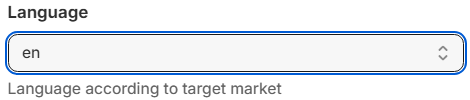
- Check that Language shows your language, such as en, and that Brand shows your brand. In our test with no defaults set, Language started at "aa" and Brand was empty.
- Click Ok. The app shows "Download request submitted successfully." and builds the file in the background, which can take a few minutes.
- Open the app's Downloads page. When it shows "Your file is ready to download.", click Download. The page says "File is available to download for next 24 hours.", so download it within a day.
- Open the file and check it. Look at the BrandName, Desc1Language, Brand1Language and GPCBrick columns before you upload.
- Upload the file to Data Hub yourself and read the Results file.
As of November 2026, the GS1 Member Organization menu lists 10, including GS1 USA, GS1 UK, GS1 Canada and GS1 Germany. For GS1 USA, the other fields start at Create, Each, In Use, General, Purchasable Yes and Variable No. All but Industry match GS1 US's help for an item sold to consumers, and Industry is your call: General or CPG.
Language and Brand sit near the top of the window. For a GS1 US file, set Language to en.
We downloaded GS1 US files from GS1 Assistant on our test store in November 2026 and opened them.
- 41 columns, starting with GS1 US's 12 required ones, in the same order.
- A 13-digit GTIN arrived as 14 digits, with one leading zero. Our test used a GS1 UK GTIN-13. We didn't test a 12-digit UPC, so check that the GTIN column shows two leading zeros before you upload.
- A GTIN typed by hand in Shopify went in too, not only the ones GS1 Assistant assigned.
- Description was the product title, a dash and the variant name on products with more than one variant, and the title alone on a product with one.
- Action read Create on every line, with Status In Use.
- With no defaults set, four columns needed fixing. BrandName held the store's name. Both language columns stayed empty with Language left at "aa". GPCBrick, the product category, held the placeholder 99999999.
Set Brand, Language and Category before you download. Then open the file and check those four columns before you upload.
GTIN shows 14 digits: two leading zeros on a 12-digit UPC, one on a 13-digit GTIN.
BrandName shows your brand, spelled the same way on every line.
Desc1Language and Brand1Language both show a code, such as en.
GPCBrick shows your product category, not 99999999.
The column headings are unchanged, and the file is still .xlsx.
A US merchant wrote:
“Assigning GTINs to products is simple, and the products appear in Verified by GS1 shortly after uploading to GS1.”
GS1 gives no time frame for that.
So where does the import file stop?
- You upload the file. The app doesn't log in to Data Hub, and GS1 US runs its own checks on what you send.
- The product category stays a placeholder unless you set one. With no Category set, the file fills the category column (GPCBrick) with 99999999. GS1 US pre-fills its own Assigned GTINs template with the same placeholder.
- Some GS1 organizations get neither route. If yours isn't one of the 10 in the window, GS1 Assistant has no file for it and no Auto Sync.
- It needs a GS1 company prefix. Numbers bought from a barcode reseller don't work with the app.
GS1 Assistant's Essential plan ($0 a month plus usage) supports prefixes up to 100 GTINs, Growth ($4.99 a month plus usage) up to 1,000, and Automation ($29.99 a month) supports all GS1 company prefixes.
Build one GS1 US import file for the variants you've assigned, then upload it to Data Hub yourself. GS1 Assistant downloads it in GS1 US's format from the variants you select. Free to install. Usage charges apply.
How Do You Know Data Hub Accepted Your File?
After you upload, the file's Status moves from "File Uploaded" to "Pending" to "Complete". Then check the # Errors column: GS1 US says that if the import worked, it shows 0. If not, open the Results file, where column A says Success or Fail for each item and column B gives the error message.
| Data Hub message | What to change |
|---|---|
| "File Format error. Please use the current Data Hub Import Template" | Download the current template. Don't rename, delete or add a column, and close the file before you upload it. If the file came from an app, ask the app's developer |
| "GTINs must be 14 digits and numeric" | Add the leading zeros, and set the GTIN column's cell format to Text so they stay |
| "GTIN Error: The GTIN specified is already in use" | GS1 US: "This GTIN already exists in GS1 US Data Hub. Check the GTIN to make sure it is unique." |
| "An active GS1CompanyPrefix licensed by your company is required" | Check the prefix is right and active, formatted as text, with its leading zeros |
| "Desc1Language Language Code not recognized." | Put a valid language code, such as en, in Desc1Language |
| "Brand1Language Language Code not recognized" | Put a valid language code, such as en, in Brand1Language |
GS1 US keeps the full list of errors in Appendix B of its user guide, linked from its import help page.
Which GS1 Organizations Sync, and Which Use a File?
As of November 2026, GS1 Assistant's Auto Sync works with GS1 organizations including Germany, Netherlands, Sweden and Brazil. On a connected prefix, assigning a GTIN usually sends the product to GS1 at the same time. Import files cover GS1 organizations including UK, US, Canada, France, Norway and Romania, and for any other, you register in your GS1 portal.
Which route is yours? As of November 2026, it depends on the GS1 organization that issued your prefix.
| GS1 organization | Route in GS1 Assistant | Who sends the product data to GS1 |
|---|---|---|
| GS1 Germany, Netherlands, Sweden, Brazil | Auto Sync (an import file is offered too) | The app, on a connected prefix (see the plan lines after this table) |
| GS1 US | Import file | You, by uploading it to Data Hub |
| GS1 UK | Import file: GS1 Assistant updates the file you export from My Numberbank | You, by uploading it to My Numberbank |
| GS1 Canada, France, Norway, Romania | Import file | You, by uploading it to your GS1 portal |
| Other GS1 organizations, such as GS1 Poland | Neither | You, by your GS1 organization's own method |
"Sync with GS1" only sends product information to GS1. It never assigns a GTIN. It applies to prefixes connected to GS1, where you use it as a manual retry when a product didn't go through.
To connect a GS1 Germany prefix, open the prefix's Connect link under GS1 Connection on the Company Prefixes page. The window asks for an access token from GS1 Germany, with a link to "Generate Access Token on GS1 Germany". Paste the token into the Access Token field, then click Validate (the window's confirm button as of November 2026).
On plans, the listing puts "API Synchronization (where supported)" on Growth and "Auto Sync where your GS1 has an API" on Automation.
GS1 UK has no Auto Sync. For GS1 UK, GS1 Assistant updates a file you export from My Numberbank, and its download window also asks for a product category (GPC brick).
Auto Assign, the Shopify Flow action "Assign GTIN to Variant", needs the Automation plan. GTINs it assigns still need registering, with an import file or, on a connected prefix, with "Sync with GS1".
Why Does Verified by GS1 Show Your Company but Not Your Product?
Verified by GS1 (GS1's public lookup) has company data for "almost all GS1 GTINs™ in the world", GS1 says, but product data for "over 300 million products". So your company can appear before any product record does. GS1 US shares products marked Purchasable by Consumer through the GS1 Registry by default.
Still not seeing one of your products? Check these four things in Data Hub.
- Whether it went in. Find it in My Products & Barcodes, or look for Success in the Results file.
- Its Status. GS1 US describes PreMarket as the status for products "not ready to be viewed by the marketplace". Products you're sharing go in as In Use.
- Its sharing setting. If someone on your account clicked Do Not Share This Product, GS1 US stops sharing that product with Verified by GS1 users.
- Your account's share settings. GS1 US lets an administrator turn off sharing for every product at once.
GS1 US explains each setting on its product sharing help page.
On GS1 Germany, product data is available in Verified by GS1 once the product's status is set to "Aktiv" (active).
Frequently Asked Questions
Do I have to register GTINs I assigned in Shopify?
Shopify doesn't require it: the barcode field takes a GTIN either way. GS1's registry only knows products you register, though, and each sales channel runs its own checks. If Google Merchant Center flags your GTINs, our guide to Shopify GTIN errors in Google Merchant Center walks through each error.
How long does it take for my products to show in Verified by GS1?
GS1 doesn't say. Waiting won't fix a product that failed to import, so check its row in the Results file before you look at its Data Hub settings.
Can I upload a CSV file to GS1 US Data Hub?
No. GS1 US's import template is an Excel file, and its user guide says to "Save and submit the file in "xlsx" format (not "CSV")". GS1 Assistant's GS1 US import file is an .xlsx file too.
Does "Sync with GS1" give my products GTINs?
No. A variant gets its GTIN from the Assign GTIN bulk action in GTIN Manager. "Sync with GS1" applies to prefixes connected to GS1 and works on GTINs that are already assigned.
My GS1 organization isn't in GS1 Assistant's list. How do I register my products?
Ask your GS1 organization how it takes product data. GS1's contact page lists a GS1 office by country.


