


Is this guide for you? It's for you if you already have label sheets or rolls for your products, and Shopify's free app doesn't list their size. It isn't about shipping labels. We make Label Wizard, the app the set-up steps use. On 3 November 2026 it had 4 reviews on the Shopify App Store and no Built for Shopify badge.
Which Label Sizes Does Shopify's Free Barcode Label App Support?
Shopify's Retail Barcode Labels app supports 15 label sizes: four Dymo, two Avery and nine Zebra. You can't add your own. You open it from Apps → Retail Barcode Labels in Shopify admin and pick one of these sizes when you create a label template.
Here's the whole list, with the sizes exactly as Shopify's Help Center gave them on 3 November 2026:
| Maker | Model | Size |
|---|---|---|
| Dymo | 30252 Large | 1 1/8" x 3 1/2" |
| Dymo | 30336 Small | 1" x 2 1/8" |
| Dymo | 30332 Square | 1" x 1" |
| Dymo | 30299 Price Tag | 3/8" x 3/4" |
| Avery Standard | 5160 | 2.63" x 1" |
| Avery Standard | 5167 | 1.75" x 0.5" |
| Zebra | 10010037 | 1.188" x 0.844" |
| Zebra | 10010038 | 1.25" x 1" |
| Zebra | 10010039 | 2" x 1" |
| Zebra | 10015340 | 2.25" x 0.75" |
| Zebra | 10010043 | 3" x 1" |
| Zebra | 10010044 | 3" x 2" |
| Zebra | ZSB-LC6 | 2.25" x 1" |
| Zebra | ZSB-LC7 | 1.25" x 1.25" |
| Zebra | ZSB-LC8 | 2.25" x 0.5" |
If your labels aren't on that list, Shopify's Help Center points you elsewhere:
"You can't add custom label sizes that aren't already available in the Retail Barcode Labels app. If you need a label size that the app doesn't support, then consider using a third-party app."
Shopify Help Center
It also creates one barcode format only. Shopify says the app "only generates Code-128 barcodes." Label Wizard's barcode element has a Format setting. In our 3 November 2026 test, its choices were Automatic, EAN-13, UPC, GTIN-14, GS1-128 and Code 128.
You're not the only one stuck with labels that don't fit. By our count in November 2026, merchants asked for more sizes, or for their own, in more than 50 of the app's reviews. One put it plainly in 2020:
"I am unable to use them as their size isn't supported in the app."
Retail Barcode Labels review · October 2020 · Canada
On Shopify's own forum, a request for a custom 58 x 38 mm barcode label, posted in March 2022, still had no reply in November 2026.
For more on what the free app can and can't do, see switching from Retail Barcode Labels.
Which Shopify Apps Let You Set a Custom Label Size?
RF: Barcode Labels Generator, Yanet Retail Barcode Labels, BarcodeMan, LabelCraft and Label Wizard all list custom label sizes on the Shopify App Store. Shopify's free Retail Barcode Labels app doesn't. Here's what each listing said on 10 November 2026:
| App (maker) | Custom label size, per its listing | Free plan, per its listing | Rating (reviews) |
|---|---|---|---|
| Retail Barcode Labels (Shopify) | No | Free | 2.3 (478) |
| RF: Barcode Labels Generator | "Custom size" feature tag | "Free plan available" | 5.0 (672) |
| Yanet Retail Barcode Labels | "Custom size" feature tag | "Free 200 labels per month" | 4.9 (461) |
| Label Wizard: Print Barcodes (Left Foot Software) | "Thermal rolls or custom size labels" | Start Free: "20 free labels, then $0.03 each" | 5.0 (4) |
| BarcodeMan Barcode Labels (Gookit, Inc.) | "Create a wide range of label formats of any sizes." | "Unlimited label printing" | 4.8 (96) |
| LabelCraft: Barcode Labels (Comarent) | "Custom size" feature tag | "200 labels per month" | 4.7 (6) |
Four newer apps, Mastiff, Label Forge, Solvi Barcode Labels and Newcraft Barcode Label Printer, also list custom sizes. None had any reviews when we checked on 3 and 5 November 2026.
How to choose:
- If your labels are one of Shopify's 15 sizes, use Shopify's free Retail Barcode Labels app.
- If you print many labels a month and want to stay on a free plan, look at the others first. RF's free plan lists up to 250 product labels, Yanet and LabelCraft include 200 free labels a month, and BarcodeMan's free plan lists unlimited label printing.
- If you want to type in your own sheet's rows, columns, gaps and margins, and check the layout preview before you print, use Label Wizard.
Comparing more label apps? See our barcode label apps for Shopify, compared.
Is your label already in the library? Search Label Wizard's Sheets and rolls for your label's maker and code, or add your own size. Previewing doesn't use credits.
What Do You Measure on a Label Sheet or Roll?
You measure six things: label width, label height, rows, columns, the gaps between labels, and the margins. Label Wizard asks for all six. Use the unit on your label box or spec sheet, and write each number as a decimal.
- Label width: one label, left edge to right edge.
- Label height: one label, top edge to bottom edge.
- Rows: how many labels run down your sheet.
- Columns: how many labels run across it.
- Gaps: the space between two labels side by side, and between two labels one above the other. Label Wizard calls these Spacing.
- Margins: from each edge of your sheet to the nearest label, top, bottom, left and right.
A few habits save you a sheet:
- Read the box first. Many label boxes and maker websites print the exact sizes.
- Turn fractions into decimals. 2 5/8 inches is 2.625, and 3/16 inches is 0.1875.
- Measure three labels, not one. A label in the middle of your sheet and one at the edge should match. If they don't, use the average.
Do your numbers add up?
Across the sheet, your left margin, every label, every gap and your right margin should add up to the sheet's width: 8.5 inches for US Letter, 210 mm for A4. Down the sheet, they should add up to its height: 11 inches or 297 mm. If they don't, one of your numbers is off.
To work back from a sheet, take its width, subtract the left and right margins and every gap across, then divide by the number of columns. That's your label width. Do the same down the sheet for the label height. On the example sheet, 8.5 minus 0.5 of margins minus 0.5 of gaps is 7.5 inches, and 7.5 divided by 3 columns is 2.5 inches.
Measuring a label roll
On a roll, measure three things: the label's width across the roll, its length along the roll, and the gap between one label and the next. A roll usually has one label across, sometimes two.
On a roll with two labels across, measure the gap between the two columns too.
What's the Smallest Label a UPC Barcode Fits On?
A UPC-A barcode needs a label at least 29.8 mm (about 1.17 inches) wide. In the GS1 General Specifications, a UPC-A at its standard size is 37.29 mm (1.468 inches) wide, and GS1 lets you print it as small as 80% of that.
| UPC-A or EAN-13 | Width | Bar height |
|---|---|---|
| Standard size (100%) | 37.29 mm (1.468 in) | 22.85 mm (0.900 in) |
| Smallest GS1 allows (80%) | 29.8 mm (about 1.17 in) | 18.3 mm (about 0.72 in) |
The 80% row is 0.8 times the standard size. Bar height doesn't count the digits under the bars.
Check both before you commit to a small label.
Here's the catch: in our test, Label Wizard accepted a 0.75 x 0.375 inch label with no size warning. So check your preview. On a small label, a short barcode value works better.
How Do You Measure the Gap Between Labels?
Measure the pitch, then subtract the label width. Pitch is the distance from the left edge of one label to the left edge of the next. It's longer than the gap, which is often just an eighth of an inch or a few millimetres, so you can measure it more accurately.
Why bother? Because a small error in the gap repeats on every label.
If you're off by 1/32 inch per gap, the third column of a three-column sheet lands 1/16 inch out. On a sheet of ten rows, your bottom row lands 9/32 inch out, more than a quarter of an inch.
Gap = pitch − label width. Say the pitch is 2.75 inches and your label is 2.5 inches wide. Your gap is 0.25 inches. Down the sheet, measure from the top edge of one label to the top edge of the label below it, then subtract the label height.
For the most accurate pitch, measure across a whole row, from the left edge of the first label to the left edge of the last one. Divide by the number of gaps (a row of three labels has two). That's your pitch: subtract the label width to get the gap.
Label Wizard asks for the gap, not the pitch. Label Wizard's own Avery 5160 template stores its horizontal spacing as a gap value, not as Avery's pitch.
Worked Example: One Label Sheet, All Six Measurements
Here's one sheet measured from start to finish: an example US Letter sheet of 30 labels, each 2.5 by 1 inch, with the metric figures alongside. Its numbers add up to the sheet exactly.
| Measurement | Inches | Millimetres |
|---|---|---|
| Label width | 2.5 | 63.5 |
| Label height | 1 | 25.4 |
| Rows | 10 | 10 |
| Columns | 3 | 3 |
| Gap across | 0.25 | 6.35 |
| Gap down | 0 | 0 |
| Margins, left and right | 0.25 each | 6.35 each |
| Margins, top and bottom | 0.5 each | 12.7 each |
Across: 0.25 + 3 × 2.5 + 2 × 0.25 + 0.25 = 8.5 inches, the width of a Letter sheet. Down: 0.5 + 10 × 1 + 0.5 = 11 inches, its height.
We added this exact sheet in Label Wizard on 3 and 4 November 2026. It showed 30 labels per sheet and a 10 x 3 layout preview, and our test PDF placed the first column where these numbers put it.
How Do You Set Up a Custom Label Size in Label Wizard?
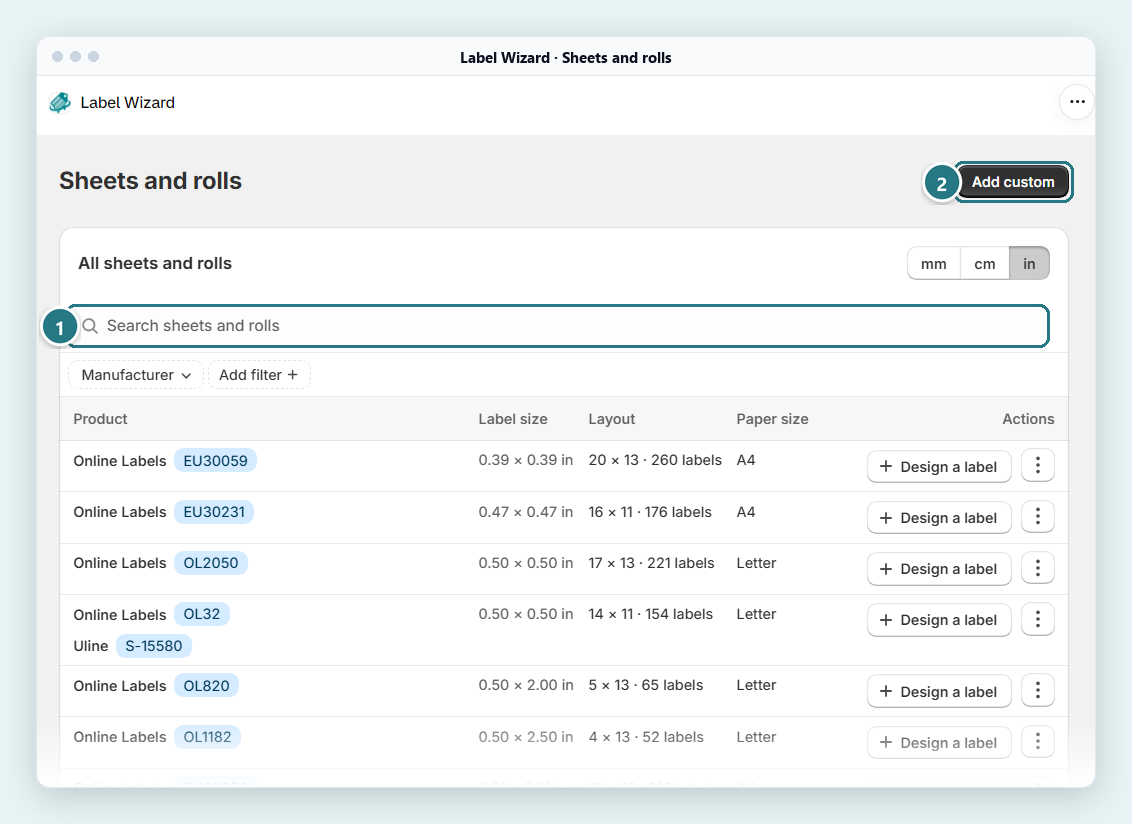
In Label Wizard, you add a custom size under Sheets and rolls → Add custom, enter your six measurements and save. Then you design a label on that size and print one test page. These steps use the example sheet.
“The variety of label sizes, shapes, and ready-made templates is really useful.”
- Check the library first. In Shopify admin, go to Apps → Label Wizard → Sheets and rolls, and search for your label's maker and code. If it's there, click Design a label on its row and skip to step 7. Our Avery label sizes guide helps you match a sheet.
- Click Add custom, and name your size. Pick a name you'll recognise, like "Letter 2.5 x 1 in, 30 labels".
- Set your units and paper. Set Display units to mm, cm or in. For a sheet, set Sheet or roll to Sheet and choose its Paper Size. If your sheet isn't one of the sizes listed, choose Custom and enter its Width and Height. Then pick the label Shape. For a roll, choose Continuous Feed: Paper Size goes away, and you set the strip's Width and Height.
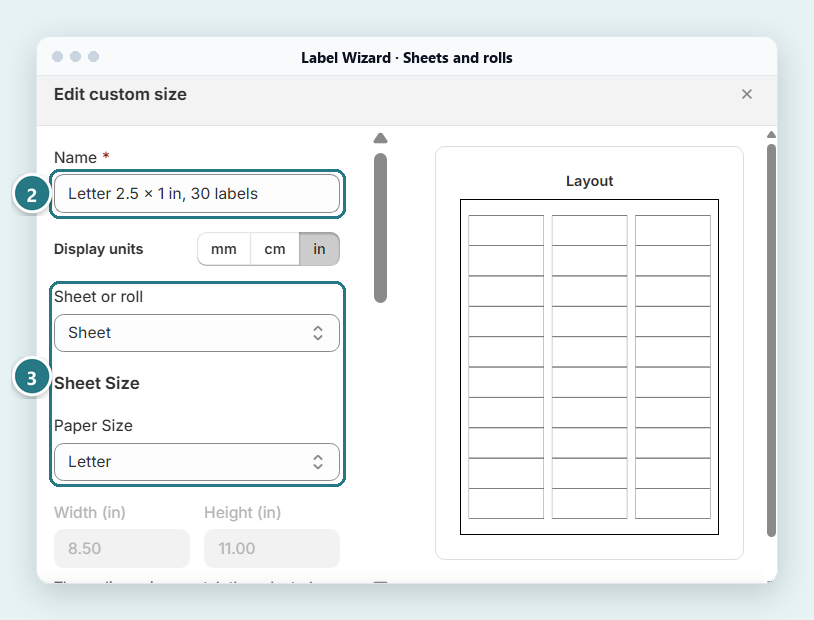
The custom size form, here on our example sheet: name it (2), then pick Sheet and its paper size (3). - Enter the label size. Type the label's width in Label Length and its height in Label Height: 2.5 and 1.
- Enter the layout. Under Table Layout, enter Rows 10 and Columns 3. Label Wizard works out the labels per sheet: 30 here.
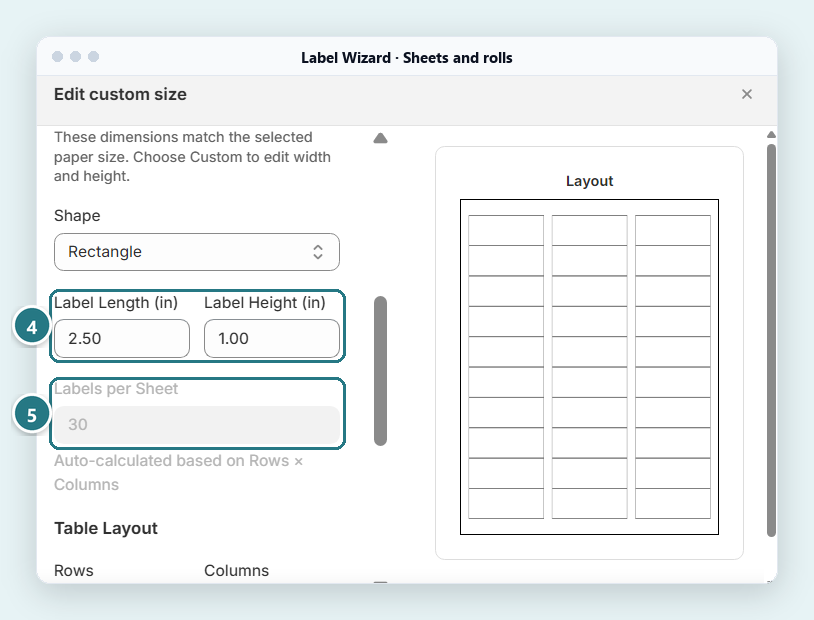
Label Length is the label's width (4). Label Wizard works out the labels per sheet for you (5). - Enter the gaps and margins, then save. Under Spacing, enter the gaps: 0.25 in Horizontal and 0 in Vertical. Under Margins, enter 0.5 top, 0.5 bottom, 0.25 left and 0.25 right. Then click Save size. A red Auto Adjust to Fit button may show under the layout preview. In our test it showed for this exact sheet, where the numbers add up to 8.5 by 11 inches. We saved without clicking it, and the test PDF put the labels where the numbers say.
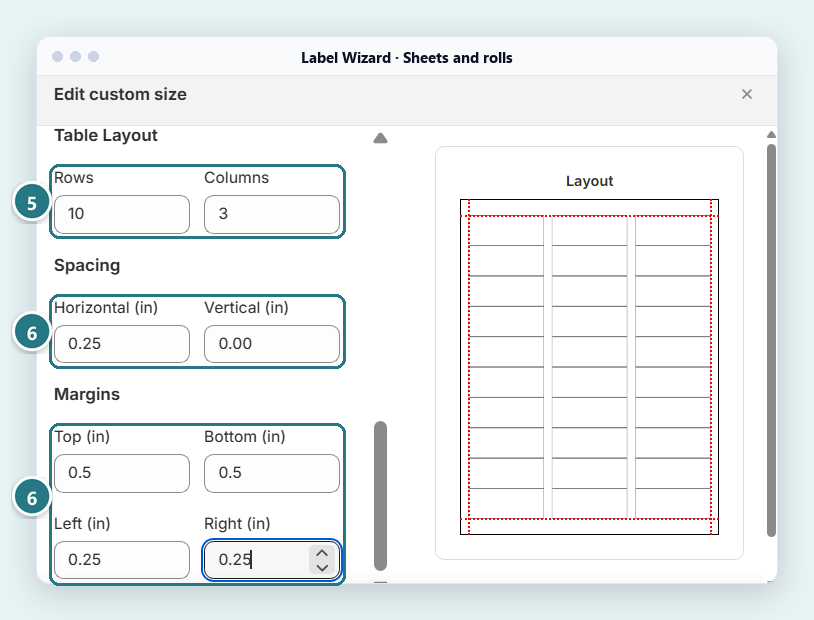
Rows and columns (5), then the gaps under Spacing and your margins (6). The preview marks the margins in red. - Design a label on your size. Add a Barcode element and set its Field to Barcode. Then add a text element for the product title, and preview it with your products.
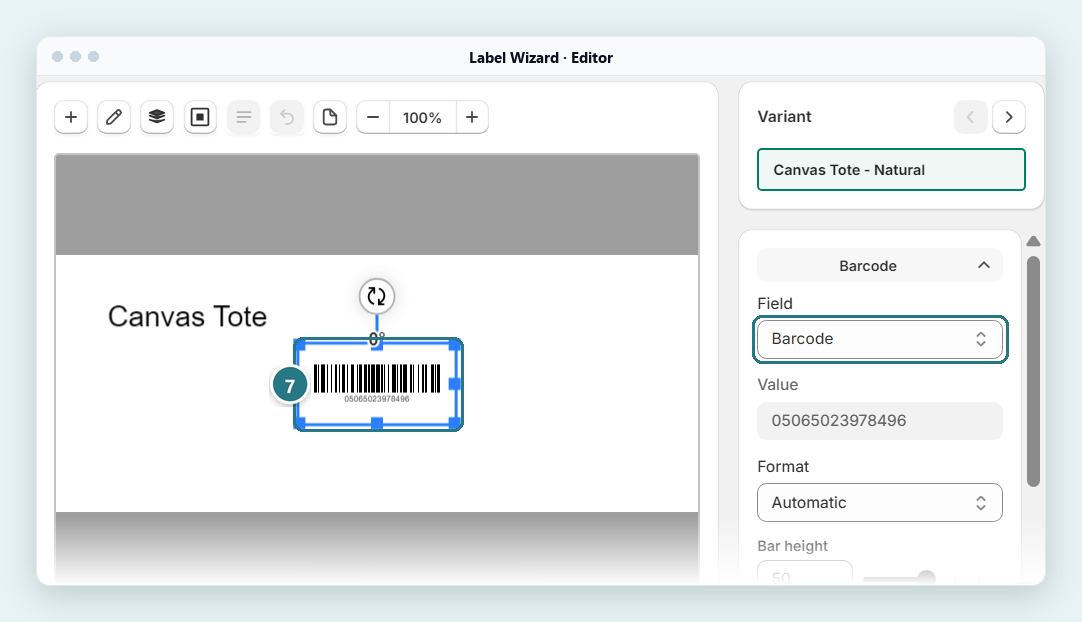
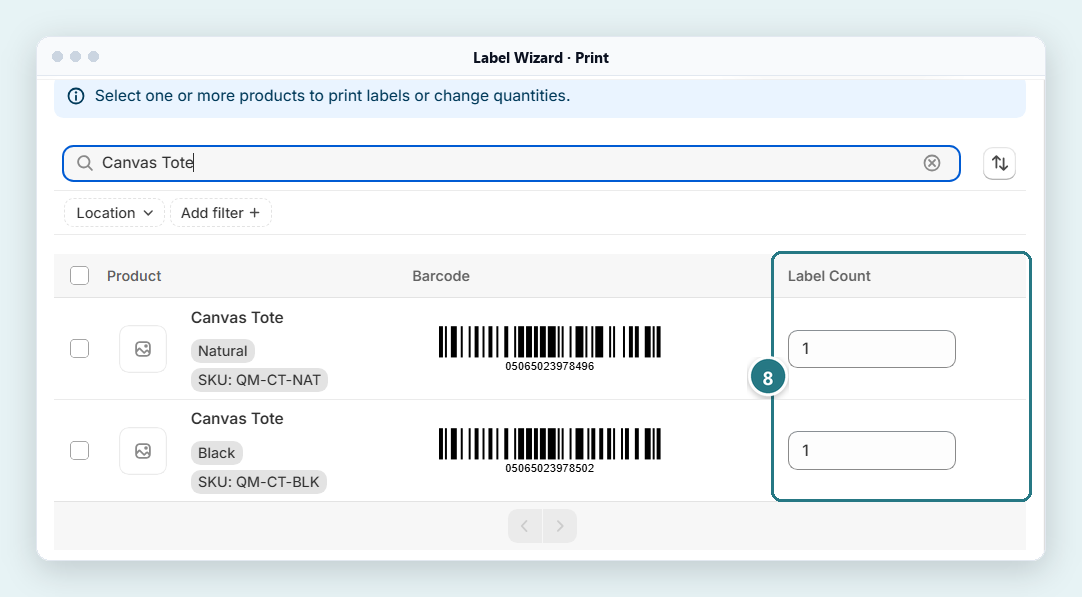
The example label in the editor, previewing a product: the barcode element (7) fills in from each variant. - Print one test page on plain paper. Pick your products and set each quantity to 1. In Select a sheet or roll to print, check the name under Sheet or roll. Label Wizard may suggest a stock sheet with the same label size, and its layout can differ from yours. Pick your custom size by name, check the layout preview, then print.
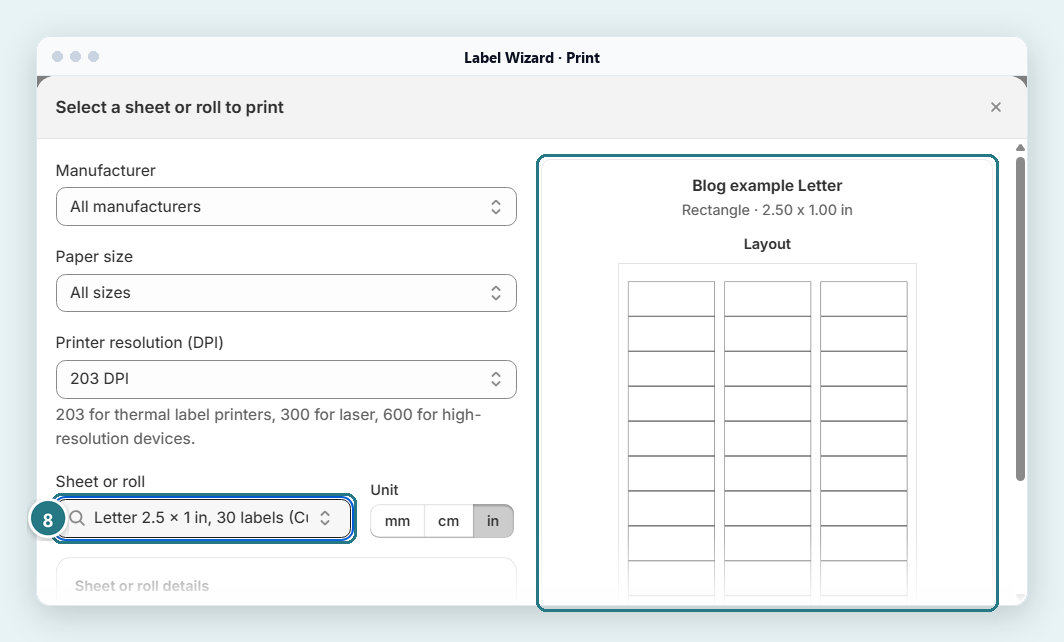
Pick your own size by name under Sheet or roll (8), then check its layout preview.
Here's why the quantity of 1 matters: Label Wizard can fill in quantities from your stock on hand, up to 500 per product. Skip that step and your test could print hundreds of labels and use up your 20 free ones.
To start every print run at 1, go to Settings and set Default print quantity to "1 label per product".
Add your label size and preview it free. Set up your sheet or roll in Label Wizard and preview a label with your own products before you print. Previewing doesn't use credits, and Start Free includes 20 free labels a month, then $0.03 each.
How Do You Check and Fix a Test Page?
Print one page on plain paper, hold it over a sheet of labels against a window or a light, and check that every printed label sits inside a real one. If it's off, the way it's off tells you which number to change: margins, gaps, printer scaling or paper size.
Here's what each fault means:
| What you see | What to change |
|---|---|
| Every label is off by the same amount | Your margins: move the top or left margin by that amount |
| The first label lines up, and later ones drift further out | Your gap, or your label width or height |
| Everything prints a little smaller than your labels | Printer scaling: print at 100% or "actual size", not "fit to page" |
| The layout is cut off at one edge | Paper size: set the printer dialog to your sheet's size, Letter or A4 |
Still off? Open your custom size in Sheets and rolls, change one number, and print another test page. When your first and last labels both line up, print on your labels.
On a roll, set your printer's page size to match what Label Wizard prints. On a roll with one label across, that's one label per page. On a two-across roll, check the page size of your test PDF first: in our test, a two-across roll printed one row of two labels per page. Its print screen also has a Printer resolution (DPI) setting, with this hint: "203 for thermal label printers, 300 for laser, 600 for high-resolution devices."
In our test on 3 November 2026, an 8-digit Code 128 barcode on a 0.75 x 0.375 inch label decoded correctly from the PDF. We didn't scan a printed label.
If long product names get cut off on your new size, see long product names on Shopify barcode labels. To print the whole run, see how to print barcode labels for every product variant.
Your test page lines up? Print the run. Pick your products in Label Wizard, choose your custom size, and print on your labels.
Frequently Asked Questions
How do I know my label size?
Check the box or the maker's website first: many label boxes print the label code and exact size. If you only have the sheet, measure one label's width and height, count the rows and columns, and measure the gaps and margins. Then check that the numbers add up to your sheet's width and height.
Is there a template for my label size?
Maybe. Search Label Wizard's Sheets and rolls library for your label's maker and code before you measure anything.
For example, Dymo 30334 isn't on Shopify's list, but Label Wizard has a Dymo 30334 template, 2.25 x 1.25 in. Print a test page even with a template.
Can I make my own barcode labels in Shopify?
Yes. Shopify's free Retail Barcode Labels app can create a barcode for products that don't have one, and prints labels on its 15 sizes.
Label Wizard prints the barcode already in each product's Barcode field, or its SKU as a barcode, on a label size you choose. It doesn't create barcode numbers.
Does Label Wizard work with thermal label rolls?
Its App Store listing says it's "Compatible with direct thermal and thermal transfer printers, sheets or rolls." You add a roll the same way as a sheet, by choosing Continuous Feed.


