

Is this guide for you? It's for you if you sell in a physical shop, stick or slide paper shelf price tags onto your shelf edges, and reprint them when prices change. It isn't about electronic shelf labels. We make Label Wizard, the app the design steps use. On 3 November 2026 it had 4 reviews on the Shopify App Store and no Built for Shopify badge.
What Should a Shelf Price Label Show?
A shelf price label is the paper tag on a shelf edge that tells a shopper what the product below it costs. Your shelf price label needs the product's name, its price, its barcode and, when the item is on sale, the old price struck through. Make the price the biggest line on your tag, because it's the line a shopper came to read. The name tells them which price belongs to which product.
| On the tag | Shopify field | In Label Wizard |
|---|---|---|
| Product name, small, one or two lines | Title | Text: Product.Title |
| Price, the largest text, bold | Price | Text: $MONEY( with Variant.Price picked after @ |
| Was price, sale items only | Compare-at price | Text: Was $MONEY( with Variant.CompareAtPrice, struck through, Hide when empty |
| Barcode, full width | Barcode | Barcode element, Field: Barcode |
| SKU (optional), handy when you restock | SKU | Text: Variant.SKU, Hide when empty |
Shopify calls the was price the compare-at price: the original price you show beside the price a customer now pays.
Can Shopify's Free Retail Barcode Labels App Print Shelf Price Labels?
Yes, on its 15 sizes, with the price and barcode in Shopify's own layout. You choose which details print and their order. Shopify's Help Center mentions no way to resize them, add a sale price, or add your own size.
If one of its sizes suits your shelf edge, that may be all you need, and the app is free.
Shopify's Help Center describes four steps:
- Open the app. In Shopify admin, go to Apps → Retail Barcode Labels.
- Pick one of the 15 label sizes for your printer and labels.
- Choose what prints. "In the Label preview section, select the information that you want to include in the label. Click and drag the dots beside an item to change its order on the label."
- Pick your products. "You need to manually select each variant and quantity when printing labels."
Fourteen of Shopify's 15 sizes are 1.25 inches tall or less when the long side runs along the shelf. So they fit under a 1.25 inch shelf channel, the plastic rail on a shelf's front edge.
If you want a full strip, the closest is Dymo 30252, at 1 1/8 x 3 1/2 inches. The one that doesn't fit is Zebra 10010044, at 3 x 2 inches. Our guide to Shopify barcode labels on a custom label size lists all 15.
Here's where it stops for price tags:
- The price size. Help mentions no font size control. One merchant noticed when an update shrank the price on the app's labels:
"There was a recent update on the generated barcodes which changed the price point size from a 9 to a 6. That's legal-sized type. I see that the barcodes are now taller, but the information customers need to see is now too small to read."
Retail Barcode Labels review · November 2026 · United States
- The sale price. In 2022, a Shopify staff member wrote, in the accepted answer on Shopify's forum: "Adding the compare-at price is not currently possible on Retail Barcode Labels." Shopify's Help Center still lists no compare-at option (checked 3 November 2026). In December 2024, the merchant who first asked replied that they now use the Yanet app for it.
- Your strip size. "You can't add custom label sizes that aren't already available in the Retail Barcode Labels app."
- Picking items. You select each variant and its quantity by hand.
In 2021, a luggage shop owner asked on Shopify's forum for price tags built from Shopify data:
"On each of our products we have hand written tags to show the RRP and sale price. Is there an app that I can connect to my Shopify store that will allow me to create and print out my own price tags to put on the luggage in store that uses the date [sic] from Shopify products ?"
A store owner on the Shopify Community, September 2021
The replies suggested exporting your products to a CSV file and building the tags with a mail merge, and none named an app. Today, several label apps print price tags straight from Shopify data, ours included.
For a fuller look at the free app's limits, see switching from Retail Barcode Labels.
Need a bigger price or a struck-through sale price? Label Wizard lets you set the size and font size of every line, then preview it on your own products. Previewing doesn't use credits.
What Size Should a Shelf Price Label Be?
There's no single standard size for shelf edge labels, so measure the space on your shelf edge first. If your shelves have a price channel, two tag-holder sellers describe 1.25 inches as its standard height. A price tag up to 1.25 inches tall fits there, as wide as your product needs.
Advance Displays sells a holder that "Fits standard 1.25″ shelf channel", and siffron says its holder "Fits most standard 1 1/4" H shelf channels". Check your own shelves before you buy labels.
Measure three things:
- The height inside the channel, or the flat strip of shelf edge you stick tags to.
- The width each product needs. A short name and a price fit on a narrow tag. A long name, a sale price and a SKU need more room.
- Your label stock and printer. Sheets run through a laser or inkjet printer, and rolls usually run through a thermal label printer. Read the box: sheets and rolls print the size on it.
We tested two sizes you can copy: 2.00 x 1.25 inches for a short tag and 3.00 x 1.25 inches for one with a SKU and a long name. Label Wizard's library also has a Dymo 30334 template at 2.25 x 1.25 inches.
If your size isn't in any library, you can set it up yourself. Our custom label size guide walks you through the six measurements for a sheet or roll.
When you print a 2.00 x 1.25 inch design, Label Wizard suggests Online Labels OL5225, a Letter sheet of 32 rectangle labels at 2.00 x 1.25 inches.
How Do You Design a Shelf Price Label in Label Wizard?
In Label Wizard, set up a label at your strip size. Then add four elements: the product title, the price in the $MONEY formula (it adds the currency symbol), the was price and the barcode. Preview it on a few real products, including one on sale, before you print.
- Set up your strip size. In Shopify admin, go to Apps → Label Wizard → Sheets and rolls. Search for your label, or click Add custom and enter its width and height. Then click Design a label on that size.
- Add the product title. Add a Text element and bind it to Product.Title. Long titles wrap at spaces on their own. Make it bigger than feels right: at size 9, our titles printed about 1/40 inch tall on the 2.00 inch tag, too small to read from a shelf.
- Add the price. Add a Text element, type $MONEY(, then type @ and pick Variant.Price from the list. The field shows as a tag inside the brackets. Close the bracket and make the text bold. Typed in as plain text, the field doesn't work: Label Wizard warns the price "will print blank". Pick the largest size at which your longest price still fits on one line. We used size 100 for the price.
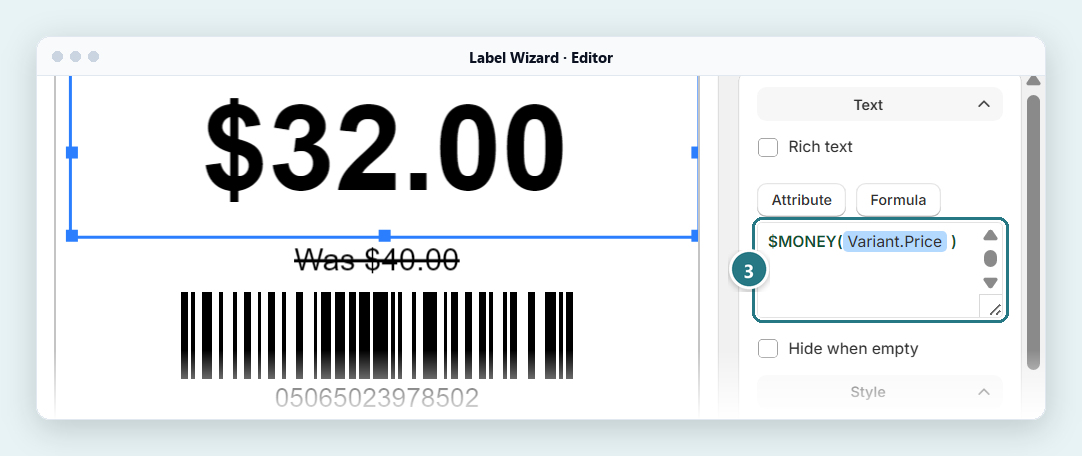
The price element (3): $MONEY( ) with Variant.Price picked from the @ list, shown as a tag. It prints the price with its dollar sign. - Add the was price. Add a Text element, type Was and a space, then $MONEY( with Variant.CompareAtPrice picked after @ the same way. Under Font style, choose strikethrough, and tick Hide when empty. On a 2.00 inch tag, if this line crowds the barcode, move it beside the price.
- Add the barcode. Add a Barcode element and set its Field to Barcode and its format to Automatic. Stretch it across the full width of the label, and keep it to about 30% of the height so the price keeps its room.
- Add the SKU, if you want it. On a wider tag, add a small Text element bound to Variant.SKU, with Hide when empty ticked.
- Preview it on real products. Pick one product with a sale price, one with a long name and one at full price. Previewing doesn't use credits.
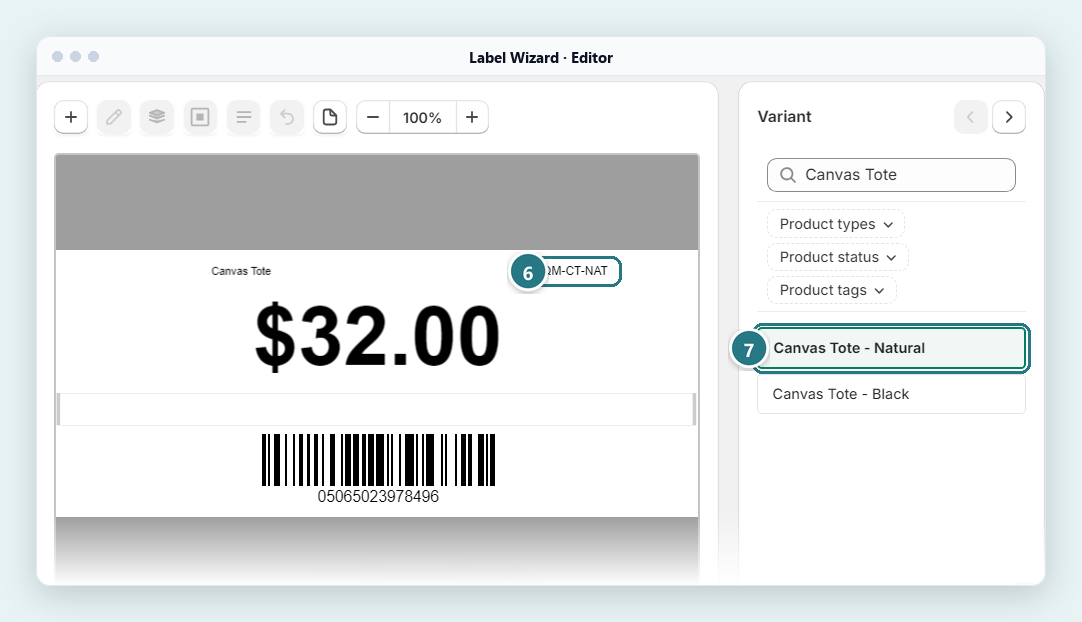
The 3.00 x 1.25 inch tag: the SKU (6) sits beside the title, and you pick the product to preview in the Variant panel (7).
Why bother with $MONEY? A bare price field prints a plain number. We tested it on a long-named product from our test store:
- Variant.Price alone printed "2629.95", with no currency symbol and no comma (4 October 2026).
- $MONEY printed "$2,629.95" on another product at the same price (4 October 2026).
- On our 3.00 x 1.25 inch price tag, $MONEY printed "$2,629.95" again (3 November 2026).
On both sizes, the product's long title fit on one line, but only because it printed small: 0.047 inch tall on the 3.00 inch tag and 0.025 inch on the 2.00 inch tag. If a title gets cut off on your tags, see our guide to long product names on barcode labels.
“Just installed Label Wizard and was able to design and print professional looking labels almost immediately!”
Design your price tag once, at your shelf's size. Preview it with your own products before you print. Previewing doesn't use credits, and Start Free includes 20 free labels a month, then $0.03 each.
How Do You Show the Old Price on a Shelf Price Label?
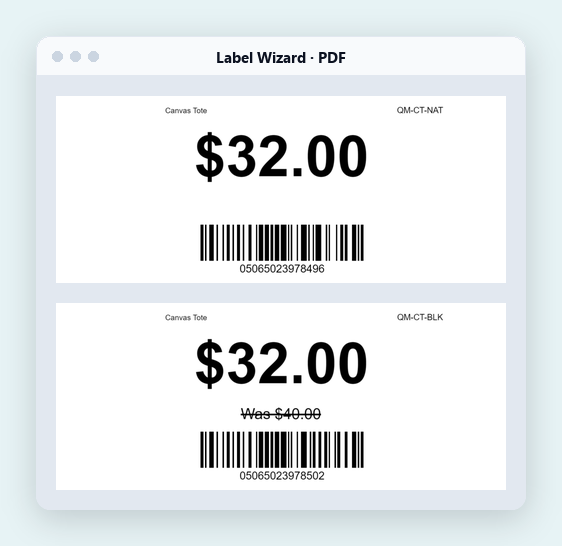
Put the compare-at price on its own line, struck through, near the price shoppers now pay. In Label Wizard, tick Hide when empty on that line so it stays off full-price items. Then one design prints both your sale tags and your full-price tags.
In our test on 4 November 2026, a variant on sale printed "Was $40.00" struck through, under its price, "$32.00". A full-price variant of the same product printed no was line at all. You can see both in the PDF below.
One trap: Hide when empty hides only that line. If you add a separate "Sale" text element, it still prints on full-price items. Ours did in an October 2026 test.
For what to print when a sale ends, see how to print sale labels that show the compare-at price.
How Do You Reprint Price Tags When Prices Change?
To reprint price tags after a price change, change the price in Shopify, then pick those items in Label Wizard's print list, set each to one label, and print. Neither Shopify nor Label Wizard tracks which printed tags are out of date, so you choose the items: search, or filter by product type, status or tag.
If you want an app to flag old tags for you, Retail Labels and Validation lists "See 25 outdated labels per store" on its free plan. We haven't tested what that covers.
- Change your prices in Shopify admin.
- Open Print labels in Label Wizard. Search by product title, or click Add filter and choose Product types, Product status or Product tags.
- Set each quantity to 1. Label Wizard fills in quantities from your inventory, up to 500 per product. In its settings, you can change the default to "1 label per product".
- Print, then swap the tags on the shelf. Printing a few tags on a half-used sheet? In the print window, click the labels already used on your first sheet, and Label Wizard leaves them blank.
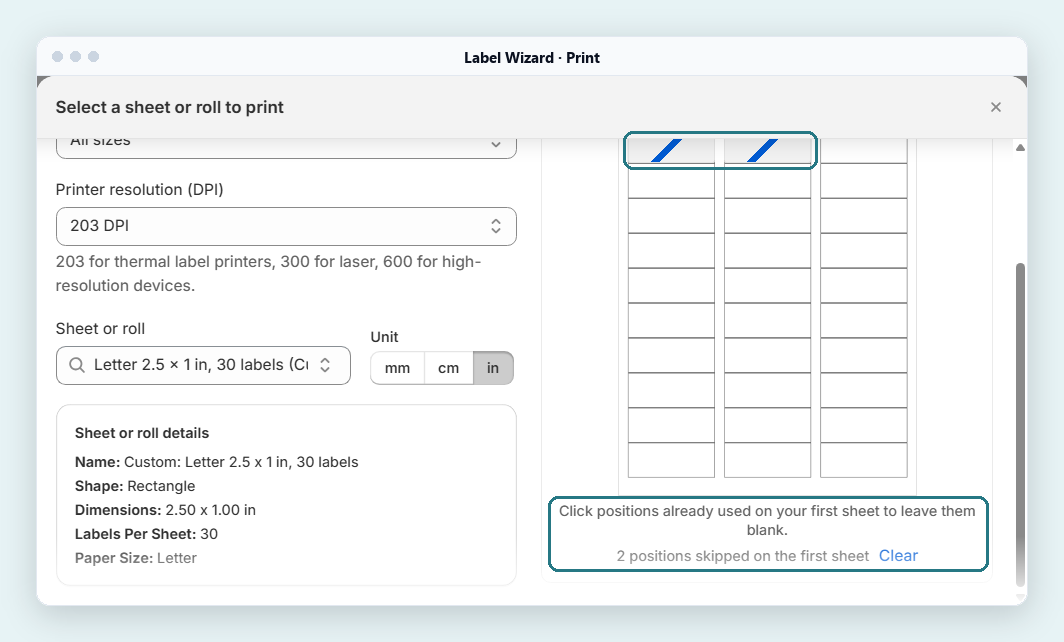
Click the labels you've already used on your first sheet, and Label Wizard leaves them blank.
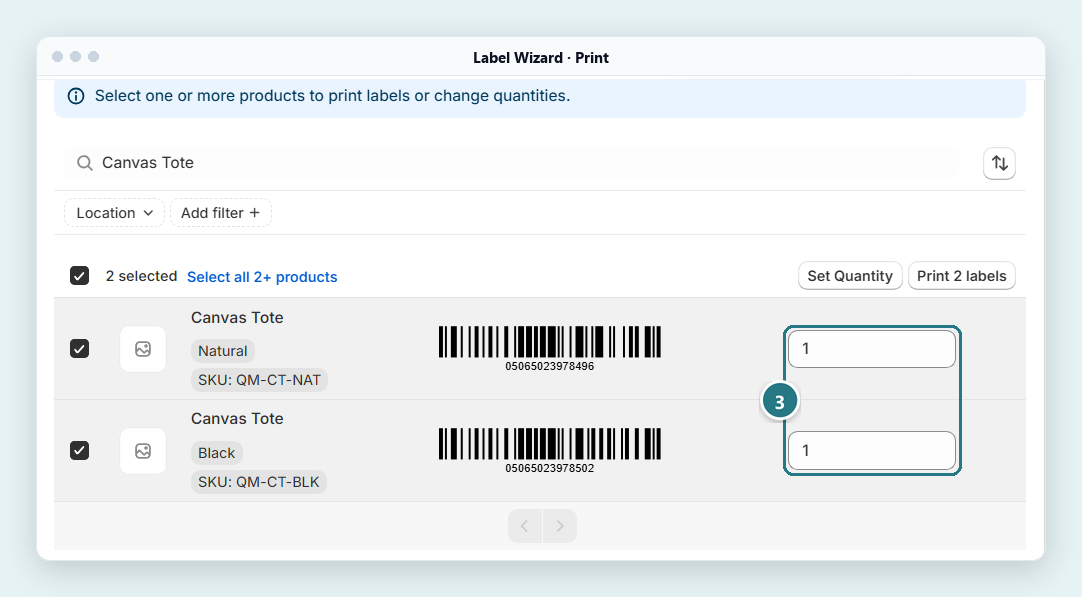
Here's a habit that saves a hunt: when you change a price in Shopify, add a product tag such as "reprint" to the product. Then filter the print list by that tag, print, and remove the tag.
Each label you print counts toward your monthly usage. On Start Free, the first 20 are free, and the price per label drops as you print more:
| Labels you print a month | Start Free | Unlimited |
|---|---|---|
| 20 | $0 | $24.99 |
| 100 | $2.40 | $24.99 |
| 500 | $14.40 | $24.99 |
| 1,000 | $24.40 | $24.99 |
| 2,000 | $34.40 | $24.99 |
Unlimited costs less once you print more than about 1,060 labels a month on monthly billing. Paid yearly, at $199, it costs less above about 610 labels a month. Below that, Start Free is cheaper.
If you print hundreds of tags a month, compare plans too: several label apps include more free labels than we do.
How Do You Check the Barcode on a Shelf Price Label?
Print one tag and scan it with your own scanner before you print the whole shop. Check that the digits under the bars match the product's Barcode field in Shopify. We checked ours by decoding the barcode in the PDF. We didn't scan a printed tag.
Three terms on Label Wizard's print screen:
- Automatic picks the barcode type from your value. In our tests, a 14-digit value printed as Code 128, a type that encodes letters and digits in one run of bars. A 13-digit value printed as EAN-13, the retail type with its digits split into groups.
- Printer resolution (DPI) is dots per inch. Its hint reads: "203 for thermal label printers, 300 for laser, 600 for high-resolution devices."
- Small labels print at 600 DPI. At the 300 setting, our small labels showed "This label is small, so it will print at 600 DPI". On the 2.00 x 1.25 inch tag, it showed the same message.
In our test on 3 November 2026, we printed a 2.00 x 1.25 inch price tag for a test-store product. Its barcode printed as EAN-13 and decoded as 5065023978007 from the PDF at 203 DPI.
No barcode on some products? Label Wizard doesn't create barcode numbers, but you can print the product's SKU as a barcode instead: see how to print SKU barcode labels in Shopify. If you scan at a Shopify POS register, our guide to Shopify POS barcode labels covers that side.
Paper Shelf Labels or Electronic Shelf Labels?
Choose paper shelf labels if you're happy to reprint a tag when a price changes, and electronic shelf labels if you want shelf prices to update on their own. Paper tags need label stock and a printer. Electronic shelf labels (ESLs) are small screens on the shelf edge that you buy as hardware, and an app such as Shelva updates them from Shopify.
That hardware cost stopped one shop owner on Reddit:
"I don't want to do hand written labels and the only digital labels I can find so far are going to cost me $15+ per label. I use Shopify POS."
A shop owner on Reddit's r/smallbusiness, February 2026
The same owner wanted an ink printer, because heat and humidity in the shop kill their thermal labels. Label Wizard's App Store listing says it makes print-ready PDFs for inkjet and laser printers, not only thermal ones, on sheets or rolls.
| Retail Barcode Labels (Shopify) | Label Wizard | Electronic shelf labels, such as Shelva | |
|---|---|---|---|
| Label size | 15 fixed sizes | Your own size | Not stated on its listing |
| Price size and layout | Choose details and their order | Font size and position for each element | "customize how they look", per its listing |
| Sale price struck through | Not possible, per a Shopify staff answer in 2022 | Yes, with strikethrough and Hide when empty, in our test | Not stated on its listing |
| Currency | Shopify Payments currencies only | Tested on a US-dollar store only | Not stated on its listing |
| Choosing what to print | Each variant by hand | Search, or filter by product type, status or tag | You link products to tags |
| After a price change | Reprint | Reprint | The tag updates, per its listing |
| Cost to start | Free | 20 free labels a month, then $0.03 each | Free plan with simulated labels. Paid plans from about $100 a month (shown in rupees from our location). Hardware price not stated |
| Rating on the Shopify App Store | 2.3 (478 reviews) | 5.0 (4 reviews) | 5.0 (8 reviews) |
You can also print paper price tags at a custom size with other label apps. Yanet, RF: Barcode Labels Generator and MS Barcode Labels all show a "Custom size" feature tag on the Shopify App Store. The App Store's review summaries for Yanet and MS Barcode Labels mention price labels and price tags.
Which one fits you:
- If one of Shopify's 15 sizes fits your shelf, and the price and barcode in Shopify's layout are enough, use Retail Barcode Labels. It's free and made by Shopify.
- If your shelf strip is another size, or you want a bigger price, use a label app with its own designer. Yanet, RF, MS Barcode Labels and Label Wizard all list custom sizes. Our barcode label apps for Shopify, compared covers more of them.
- If you want the old price struck through beside the new one, Label Wizard's listing names "Sale price tags with compare-at price". In our 3 November 2026 test, it printed them on 1.25 inch tall price tags. Design the price tag once and print it for every product and variant. On Shopify's forum, one merchant says they use Yanet for the same job.
- If you want shelf prices that change by themselves when you edit Shopify, you need electronic shelf labels. Shelva: Digital Shelf Labels is a Shopify app for them; its listing says you can "update your labels in real time as you change prices or promotions online".
- If you print labels from purchase orders or transfer orders, or from POS, Retail Labels and Validation by TinyToolsCloud lists "Print labels for products, purchase orders and transfer orders from POS".
What Label Wizard Won't Do for Shelf Price Labels
- Create barcodes. It prints the barcode or SKU your product already has.
- Know which prices changed. You pick the items to reprint.
- Print from the POS app, purchase orders or transfer orders. It works in the Shopify admin.
- Run electronic shelf labels. It prints paper labels.
We also haven't tested $MONEY with other currencies: our test store sells in US dollars.
Frequently Asked Questions
Which Shopify app can I use to print shelf price labels?
Shopify's free Retail Barcode Labels app prints them on its 15 sizes. For another size, use a label app with its own designer, such as Yanet, RF, MS Barcode Labels or Label Wizard. Label Wizard also prints the old price struck through, as we tested on 1.25 inch tall tags on 3 November 2026.
Is there a free shelf price label template I can use?
Retail Barcode Labels is free on its 15 sizes, in Shopify's own layout. Label Wizard's library has a Dymo 30334 template at 2.25 x 1.25 inches. Start Free includes 20 free labels a month, then $0.03 each, and previewing doesn't use credits.
Can I print my own barcode labels for shelves?
Yes, if your products already have barcode values in Shopify. Label Wizard prints the value from each product's Barcode field, or its SKU as a barcode, on the label size you choose. It doesn't create barcode numbers.
Do I have to reprint every label when prices change?
No, only the tags whose price changed. Find those items in Label Wizard's print list, set each to one label, and print. Electronic shelf labels update themselves, but you buy them as hardware.


