

Each barcode in Shopify has a type (the standard it follows), and Custom is the default. If a saved Custom barcode holds a valid GTIN (the number under a retail barcode, such as a UPC or an EAN), Shopify suggests switching its type to GTIN. It checks the numbers you type, but it doesn't give you new ones.
It matters most if you own a GS1 company prefix (the block of numbers you license from GS1) and still give every product in Shopify its own GTIN.
Seeing "1 suggestion available" under a barcode right now?
- If the number came from your own GS1 company prefix, click Accept. The barcode type changes to GTIN, and the number stays the same.
- If it's an internal number that was never meant to be a GTIN, such as a SKU, click × to dismiss it. Not sure which is which? See SKU vs UPC.
What Is Shopify's GS1 Barcode Check?
Shopify's GS1 barcode check is three features added on 29 October 2026, and none of them stops you saving. A new barcode registered with GS1 gets the type GTIN as you type it. A saved Custom barcode holding a valid GTIN shows a GTIN suggestion. A warning icon flags a product name or vendor that doesn't match GS1's listing.
Shopify's Help Center describes the first two in its own words: "If you enter a barcode that's registered with GS1, then the barcode type is set to GTIN automatically."
And: "If a saved barcode has the Custom type and its value is a valid GTIN, then GTIN is suggested as its type. You can accept or dismiss the suggestion."
Shopify's changelog adds that it "never changes a barcode you've already saved unless you accept the suggestion." Shopify doesn't say which GS1 service it checks, only "the GS1 registry".
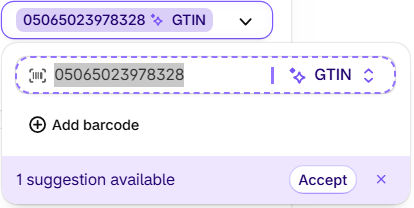
What Does "1 Suggestion Available" Mean on a Shopify Barcode?
"1 suggestion available" means Shopify suggests the type GTIN for a saved Custom barcode. As of November 2026, it's one of six labels and messages a variant's Barcodes field can show. Five of them let you save anyway. Only "Checksum validation failed" stops a save, and it shows only after you choose the type GTIN yourself.
| What you see | What it means | What to do |
|---|---|---|
| "✦ GTIN" on the barcode | Shopify set the type to GTIN as you typed, or suggests GTIN for a saved Custom barcode | Nothing if it was set as you typed. If "1 suggestion available" shows, see the next row |
| "1 suggestion available", with Accept and × | A saved Custom barcode whose "value is a valid GTIN" | Accept for numbers from your own prefix. Dismiss internal numbers that aren't GTINs |
| A warning icon | Your product name and vendor don't match GS1's listing for that barcode | Click it to compare. No change needed unless GS1's record names another company |
| "In use by 1 other item. View in bulk editor" | Another item already has this barcode | Fix the number before you save. Shopify still lets you save |
| No type label and no suggestion | The barcode is Custom and isn't a valid GTIN, or was never meant to be one | Check the digits |
| "Checksum validation failed" | You chose type GTIN and the check digit is wrong | Fix the number. Shopify won't save until you do |
Should You Accept Shopify's GTIN Suggestion?
Yes, accept Shopify's GTIN suggestion for barcodes from your own GS1 company prefix. Accepting changes the barcode type from Custom to GTIN and leaves the number as it is. Dismiss the suggestion on internal numbers that aren't GTINs. You can accept one at a time, or every suggestion at once in the products and inventory bulk editors.
GTIN is the right type for a prefix owner, whatever the length. Shopify's developer docs say the GTIN type "Accepts 8, 12, 13, and 14-digit codes" and advise: "Use GTIN when the code is registered with GS1."
Assigned your GTINs with GS1 Assistant, our app? Those barcodes arrive as Custom, because the app writes them without a type. Shopify then shows a GTIN suggestion on them. Accept it.
To accept them all in the bulk editor:
- Open your products in the bulk editor and add the Barcodes column from the Columns menu.
- Scan the cells marked "✦ GTIN" for internal numbers you want to keep as Custom. The bulk editor can't sort or filter by barcode, so you check by eye.
- Accept every GTIN suggestion at once, or dismiss them all. Shopify's changelog says both work "in the products and inventory bulk editors."
Why Does a Barcode Get No GTIN Suggestion?
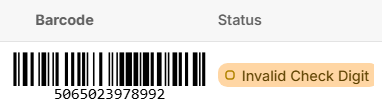
Shopify suggests GTIN only when a saved Custom barcode's "value is a valid GTIN", and a wrong check digit makes it invalid. In our test store, we typed 5065023978992, which has a wrong last digit. Shopify saved it with no error, kept it Custom and showed no suggestion. The right last digit is 1 (5065023978991).
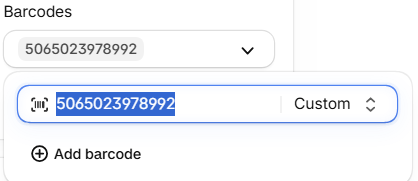
No suggestion doesn't always mean a typo. An internal number that was never a GTIN gets none either.
To find and fix a mistyped barcode:
- Open the product. If it has variants, open the variant. Click the Barcodes field.
- Look for a barcode with no type label and no "1 suggestion available".
- Check that number with GS1 US's check digit calculator. Enter every digit except the last. If the last digit it calculates differs from yours, the number has a typo.
- Fix the number, save, and accept the suggestion when it appears.
Choose the type yourself and Shopify checks the digits. Shopify's changelog says that once you give a barcode a type, "we'll check the value against that standard's format, so a mistyped digit gets caught as you enter it."
In a test store, a barcode with a wrong check digit and type GTIN wouldn't save. Shopify showed "1 barcode has an error", with "Checksum validation failed" on the barcode.
A product CSV import does the same for the Variant Barcodes column: a barcode with its type set to gtin and a wrong check digit fails before the preview, with the message "GTIN barcode checksum validation failed" followed by the barcode. The older Variant Barcode column (singular) imports the same typo as Custom, with no check.
Does Your Product Name Have to Match GS1?
No. Shopify's changelog calls the name comparison "for your information only" and says "You don't need to change your product title, vendor or description to match GS1." The warning icon appears when your product name and vendor don't match GS1's listing for that barcode.
Shopify's Help Center puts it this way: "To compare your product details with the GS1 registry, click the warning icon."
In a test store, the panel read "This GTIN does not match your product information", with a "GS1 Registry Comparison" that listed "Vendor: Doesn't match" and "Product name: Doesn't match".
A small difference, such as a shorter product name, needs nothing from you. If GS1's record names a different company, look closer: the number may not be yours. Google Merchant Center has its own error for that case, "GTIN not related to brand".
What Can't Shopify's GS1 Barcode Check Do?
Shopify's GS1 barcode check looks at the barcodes you enter. As of November 2026, it doesn't give you the next unused number in your prefix, track the numbers you've used or stop a duplicate from saving. Shopify's Help page and changelog also describe no step that registers your products with GS1.
- Sets type GTIN as you type a barcode registered with GS1
- Suggests GTIN for a saved Custom barcode that's a valid GTIN
- Flags a name or vendor that doesn't match GS1's listing
- Warns "In use by 1 other item", then lets you save
- Finding the next GTIN to start with
- Tracking which numbers you've used
- Stopping a duplicate before it saves
- Registering your products with GS1
Take a catalog of 200 products in 4 sizes, 800 variants (an example, not a real store). By hand, that's 800 lookups in your spreadsheet of numbers and 800 typed values, each with type GTIN chosen. Any typo left as Custom saves without a warning.
GS1 Assistant does that part for you. It assigns GTINs from your GS1 company prefix to your variants, one at a time or in bulk, and writes each to the barcode field. It also shows which products have missing, invalid or duplicate GTINs.
Before you assign, the app shows how many numbers are left in your prefix.
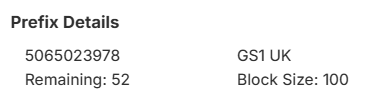
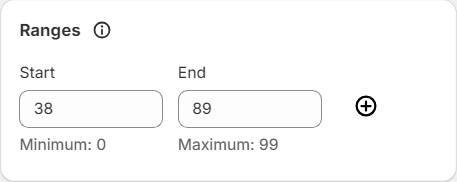
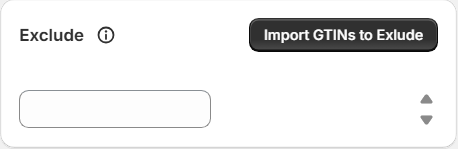
If you already made some barcodes directly in GS1, each prefix page in the app has two settings for that, "Ranges" and "Exclude". Ranges sets where assigning starts and ends in your block, and Exclude skips the GTINs you enter so the app won't assign them. For a list of numbers, there is an "Import GTINs to Exclude" option.
After a scan, a barcode with a wrong check digit shows up in the app's Invalid list, marked "Invalid Check Digit".
For 10 GS1 organizations as of November 2026, including GS1 US, UK and Canada, you download an import file from the app in that organization's format, then upload it to your GS1 portal. Where your GS1 organization offers a direct connection (an API), the app can send your products instead.
Growth lists "API Synchronization (where supported)", and Automation "Auto Sync where your GS1 has an API". Without a direct connection, you register the GTINs you assigned in Shopify with your GS1 organization yourself.
Already finished every barcode? Check where GS1 Assistant stops before you install it:
- If every barcode is already assigned, typed GTIN and registered, Shopify's check may be all you need.
- The app writes barcodes without a type, so you still accept Shopify's suggestion afterwards.
- It doesn't confirm your product details are correct, and it can't make a barcode accepted on any sales channel.
- It works with a GS1 company prefix you license yourself, not barcodes bought from a reseller.
Plans, from the App Store listing: Essential ($0 a month plus usage) supports prefixes up to 100 GTINs. Growth ($4.99 a month plus usage) up to 1,000, and Automation ($29.99 a month) any size. An 800-variant catalog needs a prefix of 1,000 numbers or more, so Growth or Automation, depending on its size.
Give your next variants a GTIN from your own prefix, then accept Shopify's suggestion in one pass. GS1 Assistant assigns from your GS1 company prefix and flags missing, invalid and duplicate barcodes.
Haven't assigned yet? You can assign GTINs in Shopify first, then register them with GS1, or start inside GS1. For the bulk steps, see how to bulk-assign GTINs to Shopify variants.
Is Shopify's GS1 Check the Same as Verified by GS1?
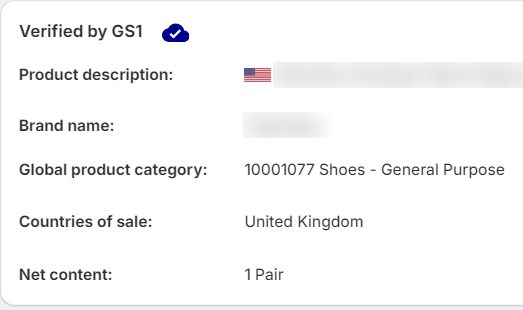
No. Shopify says it checks barcodes against "the GS1 registry" and doesn't name the service, while Verified by GS1 is GS1's public lookup. GS1 says it gives company information for almost all GS1 GTINs, and basic product information for over 300 million products.
So a GTIN suggestion in Shopify says nothing about whether Verified by GS1 shows your product.
GS1 Assistant shows the Verified by GS1 record for a product inside the app. The data comes from GS1, not from a check by the app.
How Do Barcodes Work in Shopify Now?
As of November 2026, each Shopify variant holds up to 20 barcodes, and sales channels read the first one. Each barcode has a type, and Custom is the default. Choose GTIN and Shopify refuses a wrong check digit. Since 29 October 2026, Shopify suggests GTIN for valid Custom barcodes and compares your product name and vendor with GS1's listing.
- The same value can't be used twice on one product or variant.
- Keep your GTIN in first place, since that's the barcode channels read.
- Types: Custom, GTIN, UPC, EAN, ISBN, ASIN and NS-PID.
A Custom barcode that holds a valid GTIN also counts as a product identifier for Shopify's EU shipping labels, which also need an HS code for each product.
Comparing barcode apps for Shopify? Our roundup of Shopify barcode and GTIN apps compares 7 of them on features, pricing and reviews.
Frequently Asked Questions
Should I accept all GTIN suggestions at once?
Only if every suggested barcode came from your own GS1 company prefix. One bulk accept changes them all, so scan the Barcodes column first for internal numbers you'd rather keep as Custom.
Can I accept the suggestion before my products show in Verified by GS1?
Yes, if the number comes from your own GS1 company prefix. Accepting changes only the barcode type inside Shopify. Shopify's Help page ties the suggestion to a saved Custom barcode whose "value is a valid GTIN" and doesn't mention Verified by GS1.
Should I pick GTIN, UPC or EAN for my barcodes in Shopify?
GTIN, for 8, 12, 13 and 14-digit numbers alike. Shopify's Help Center lists UPCs and EANs as types of GTIN.
Why does my barcode say Custom in Shopify?
Custom is Shopify's default barcode type, and Shopify staff say "Custom just means no type was declared." Barcodes written by an app without a type, GS1 Assistant included, show as Custom. If the value is a valid GTIN, Shopify suggests GTIN, and you can accept it.
Can Shopify generate GTINs for my products?
No. Shopify only looks at numbers you've already entered. Your GTINs come from the GS1 company prefix you license, and keeping track of which ones you've used is up to you or the tool you assign with.
Does accepting the suggestion register my product with GS1?
No. Accepting changes the barcode type inside Shopify, and neither Shopify page says it sends anything to GS1. Registering your product details is a separate step with your GS1 organization.


