

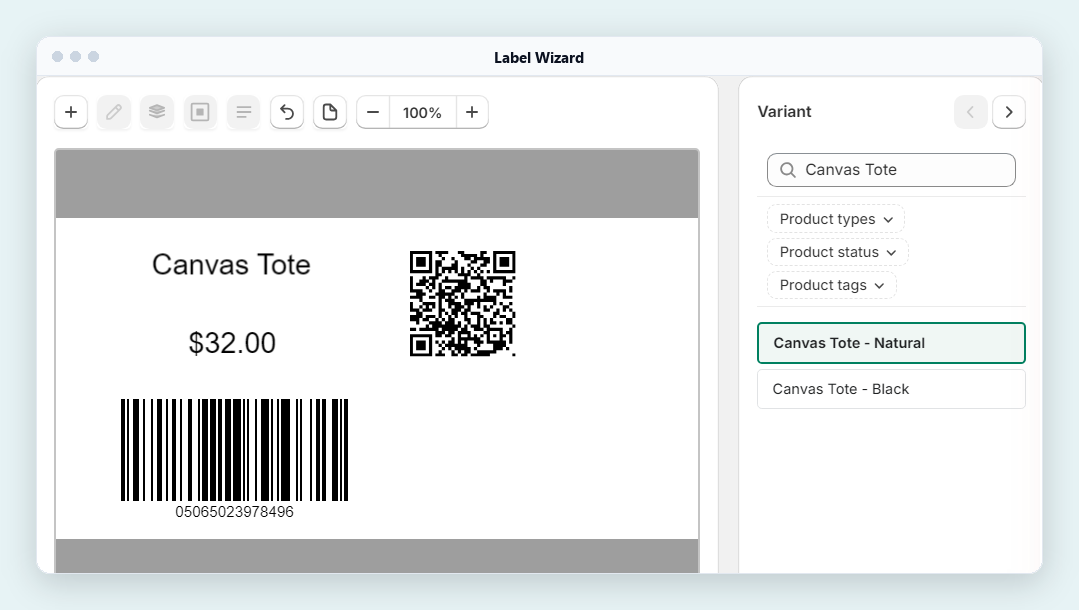
In our 10 November 2026 test, Label Wizard printed a QR, a barcode, the product name and the price on one label, and every code decoded in our test.
Who it's for: Shopify merchants who want a QR code on their product labels or price tags, next to the barcode and price, for many products at once. We make Label Wizard, the app in our test. On 10 November 2026 it had 4 reviews on the Shopify App Store and no Built for Shopify badge.
How Do I Print Product Labels with a QR Code from Shopify?
Use a label app that reads your product data. Shopify's own QR and label apps don't put a QR on a product label. Shopcodes makes a QR image for one product, and Shopify's Help says its Retail Barcode Labels app "only generates Code-128 barcodes".
In Label Wizard, the QR is an element in your label design, like the barcode or the title. You point it at a product field once. When you print, each label fills in its own product's value, so each product's labels carry that product's URL. Variants of one product share it.
What Does Shopify's Shopcodes App Do?
Shopcodes is Shopify's free QR app. Shopify Help says: "A QR code generated with the Shopcodes app is connected to a specific product." The code can lead to the product page, or to checkout with the product in the cart.
You download the code as "a zip file, which contains a PNG file recommended for sharing online, and an SVG file which is best for sharing in print". Shopcodes can also change where a printed code points later, and it shows scans and conversions.
Shopcodes makes one code at a time, without a label layout
Help's steps make one product's code at a time, and the download is a code image with no label around it. A Shopcodes reviewer put it this way:
"There is no way to bulk create a product code with multiple variants and there is also no way to bulk download/print codes. Very manual as you have to create and download one product/variant at a time."
Shopcodes review, 2 stars, United States, August 2026
You'd still place that code next to the name, price and barcode on your label yourself.
How to Put a QR Code, Barcode, Name and Price on One Label
We built this label on 10 November 2026 in Label Wizard, at 2.00 x 1.00 in, for a demo product, Canvas Tote:
- Add a barcode element and set its Field to Barcode.
- Add a text element holding Product.Title.
- Add a text element holding Variant.Price, with the Formula $MONEY so it prints as $32.00.
- Add a QR element and point it at Product.URL (next section).
Point the QR code at the product page
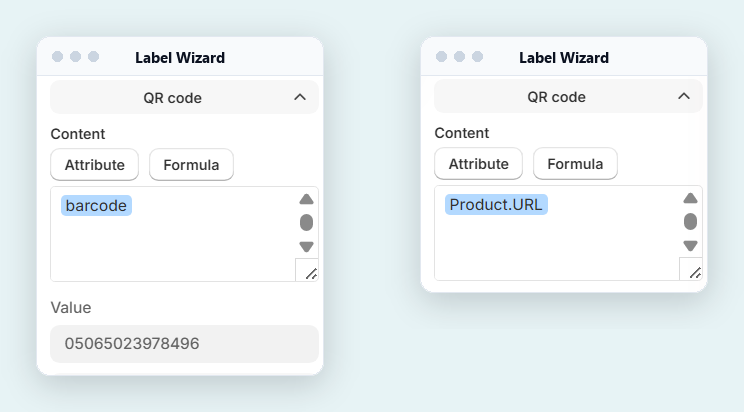
In our test, a new QR element started out holding the barcode field, so its Value showed the product's barcode number. To link it to the product page instead:
- Add a QR code from the Add menu, select it and find Content.
- Click right after the barcode item and delete it with Backspace. In our test, Value then showed 0000000000000.
- Click Attribute and pick Product.URL.
- Check Value: it should now show a web address ending in /products/ and the product's handle.
Check that Value shows only the web address. If the barcode number is there too, remove the barcode item.
Print one label per product
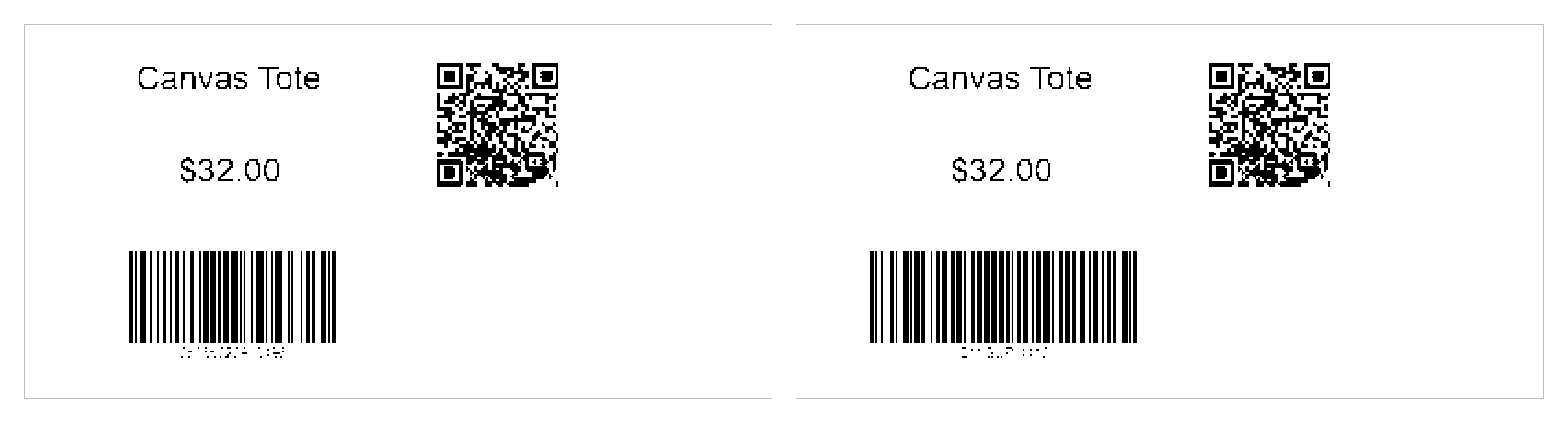
Open the print list, tick the products you want, set a quantity and print. In our test we printed Canvas Tote Natural and Black, one label each, at 203 DPI and again at a higher resolution. We printed to PDF from Label Wizard's print dialog, then decoded the codes on both labels:
- The QR codes decoded to Canvas Tote's product URL.
- The barcodes decoded to each colour's first barcode: 05065023978496 for Natural and QM-SUP-4418 for Black.
Does Each Variant Get Its Own QR Code?
Each variant gets its own label, but in our test both colours' QR codes held the same address, the product's URL, with no variant in it. The code holds the product's address, not the colour's.
If you need a code that differs by variant, point the QR at a variant field such as Variant.SKU instead. That gives a code, not a link (next section).
How Big Should a QR Code Be on a Label?
In our test, on a 2.00 x 1.00 in label, a QR about 0.3 in square decoded at 203 DPI, the resolution Label Wizard's settings suggest for thermal label printers. On a 1.00 x 0.50 in label the QR printed at about 0.16 in, and it didn't decode at 203 DPI.
In an earlier test, on 3 November 2026, a QR filling the height of a 1.00 x 0.50 in label decoded at 600 DPI.
In our 10 November test, the QR kept about the same size whatever Width and Height we typed in its Advanced settings. Judge the QR by what you see on the canvas, not by the numbers. All of these are decodes of the PDF, not phone scans of a printed label.
Before a full print run, check two things:
- Keep the whole QR inside the label. In an earlier test, a QR that ran past the label's edge printed cut off and didn't decode.
- Print one test label first and check the QR with the scanner or phone you'll use.
What Else Can the QR Code Hold?
The QR can hold other fields under Attribute, for example Variant.SKU. In our test a QR pointed at Variant.SKU decoded as the shirt's SKU, QM-LINEN-BLU-SM. A SKU code suits stockroom labels, where a phone or scanner reads the SKU.
Check that the field has a value first. When the field was empty, the QR still printed in our test, holding 0000000000000.
The 0000000000000 QR printed for a variant with no SKU, and for a QR left on the barcode field for a variant with no barcode. Before you print, switch the Variant panel to each variant and read the QR's Value.
Our guide to printing SKU barcode labels from Shopify covers SKU labels in more detail.
Shopcodes or a Label App: Which Fits?
| Question | Shopcodes | Label Wizard |
|---|---|---|
| What you get | A QR code file (PNG and SVG) for one product | A printed label with a QR, barcode, name and price, one per product |
| How many at a time | One product's code at a time (Help's steps) | The products you tick in the print list |
| Label layout | None: you place the code yourself | You design the label once, at your own size |
| Change where a printed code points | Yes | Not on its listing |
| Scan and conversion counts | Yes | Not on its listing |
| Cost | Free | 20 free labels, then $0.03 each |
If you want scan counts or a link you can change after printing, Shopcodes does that. If you want the code on a product label for a whole catalogue, a label app fits better.
What a Product QR Code Is Not
This QR is a link to a web page. It doesn't replace the UPC or EAN barcode a till reads, and it isn't a GS1 Digital Link.
Keep the barcode on the label. Our guide to GS1 Sunrise 2027 and 2D barcodes explains the difference.
If you change a product's handle later, labels you already printed keep the old URL. Shopify Help says: "When you change a URL on your Shopify store, you can create a URL redirect", so add one for the old address.
Want to see your QR labels before you print? In Label Wizard's editor, switch the Variant panel to see each product's label and its QR Value. Previewing doesn't use credits.
What We Haven't Tested
We tested one product with two colours and one shirt with two sizes, on a development store, printed to PDF at 203 DPI and a higher resolution. We haven't tested physical prints, phone cameras, stores with their own domain, or label sizes other than 2.00 x 1.00 in and 1.00 x 0.50 in.
A development store's product URL uses its myshopify address, so we make no claim about which domain your printed URL shows.
Label Wizard reads your product data and doesn't change it. It prints the codes you already have and the URLs Shopify gives your products.
“The base-level app is fantastic. Super powerful, easy to use.”
Frequently Asked Questions
Can Shopify print QR code labels?
Not with its QR and label apps alone. Shopcodes makes a QR image for one product, and Shopify's Retail Barcode Labels app prints Code 128 barcodes. To print a QR on a product label, use a label app that reads your product data.
Do I need a different QR code for each product?
Yes, and the label app makes them for you. When the QR points at Product.URL, each product's label carries that product's URL. You set it up once in the design.
Can the QR code hold the SKU instead of a link?
Yes. Point the QR at Variant.SKU, and in our test it decoded as the variant's SKU. Check each variant has a SKU first. In our test, an empty field printed a QR holding 0000000000000.
Will the QR code still work if I change the product's URL?
Labels you already printed keep the old address, ending in the old handle. Add a URL redirect in Shopify from the old address to the new one.
For the label size itself, see our guide to custom label sizes for Shopify barcode labels.


