


Who it's for: It's for you if your Shopify variants carry more than one barcode, such as a GTIN plus a supplier's code, and you need to know which one ends up on the label. We make Label Wizard, the app in our test. On 10 November 2026 it had 4 reviews on the Shopify App Store and no Built for Shopify badge.
Which Barcode Prints When a Variant Has More Than One?
The first one in the variant's barcode list. A Label Wizard barcode element prints one value, and Shopify's own rule is that the first barcode "is still the one used wherever a single barcode is expected, which means your labels, sales channel feeds, and apps keep working exactly as they do today."
The question comes up on Shopify's forum. In a Shopify Community thread about variants with codes from different suppliers, a September 2026 reply advised:
"If relabeling is part of it, I’d also verify that the printed label always uses the primary Shopify barcode so checkout stays simple."
A reply on the Shopify Community, September 2026
The reply's "primary" is the forum's word, not a Shopify setting. We tested which barcode Label Wizard prints on 10 November 2026, with labels we decoded.
What Changed When Shopify Allowed Up to 20 Barcodes per Variant?
On 8 September 2026, Shopify announced: "Now you can add up to 20 barcodes to a variant, and any of them identifies the product." Before that, a variant had one Barcode field. Our GS1 Sunrise 2027 guide covers what the change means for GTINs.
Barcode types, and adding them by CSV
Each barcode can carry a type. Shopify's changelog says: "Give each barcode a type: UPC, EAN, ISBN, GTIN, or ASIN", plus "Custom for internal codes that don't follow a standard." In our test store, the type menu also listed NS-PID.
In a product CSV, Shopify's Help says to "Separate multiple barcodes with a semicolon", up to a maximum of 20, and that "A barcode that has no type is imported as a Custom barcode." Shopify doesn't let you use the same barcode value twice on the same product or variant.
Which Barcode Do Sales Channels, POS and Other Apps Read?
- Sales channels read the first barcode. Shopify: "Channels continue to read the first barcode provided."
- Shopify POS finds a product by any of them. Shopify Help: "In Shopify POS, you can find a product by scanning or searching any of its barcodes, or its SKU."
- Older apps and integrations that read only the original Barcode field see one barcode. Shopify's developer changelog: "an integration reading only barcode sees one of them with no signal that others exist."
So a code your POS scans fine may not be the code your label shows.
Which Barcode Does Label Wizard Print? What We Decoded
We tested on 10 November 2026 with two variants of a demo product, Canvas Tote:
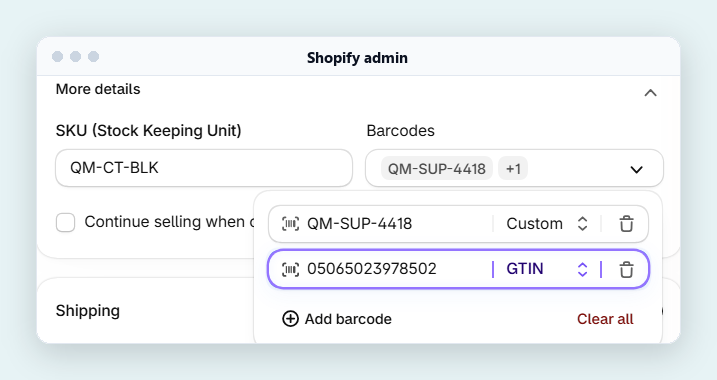
- Natural already had the GTIN 05065023978496. We added a second barcode, QM-SUP-4417, typed Custom. Shopify listed the GTIN first.
- Black had the GTIN 05065023978502. We removed it, added QM-SUP-4418 (Custom), then added the GTIN back. Shopify now listed QM-SUP-4418 first.
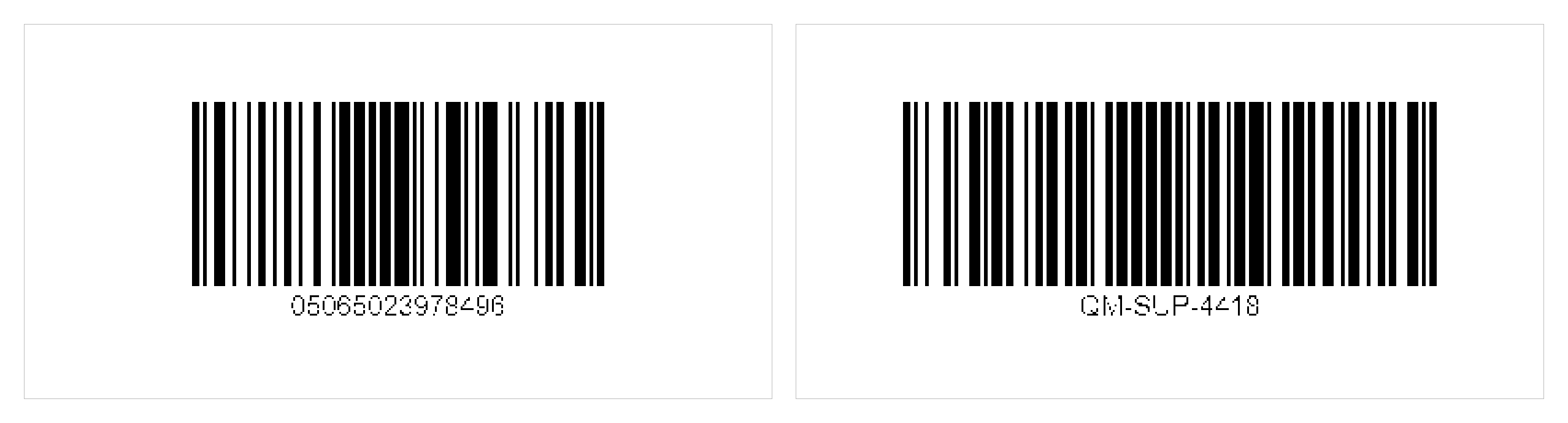
- We printed one label for each to PDF from Label Wizard's print dialog, using a design whose barcode element reads the Barcode field, at 203 DPI. Then we decoded both labels.
The Natural label decoded as 05065023978496 and the Black label as QM-SUP-4418. Each label printed the first barcode in its variant's list. When we set Natural's barcode type to GTIN explicitly, the label still decoded as the same Code 128 value.
Can you print the second barcode instead?
Not from the same field. A Label Wizard barcode element reads one source: Barcode, SKU or static text you type. In our tests, Barcode meant the first barcode in Shopify's list.
Printing a supplier code or SKU another way
If the code you need on the label is your SKU, set the barcode element's Field to SKU and its Format to Code 128. Our guide to printing SKU barcode labels from Shopify walks through it. A code kept in a metafield, such as an Amazon FNSKU, printed as text, not as bars, in our 3 November 2026 test.
How Do You Check Which Barcode Is First Before a Print Run?
- In Shopify admin, open the variant and look at its barcode list. The top entry is the first barcode.
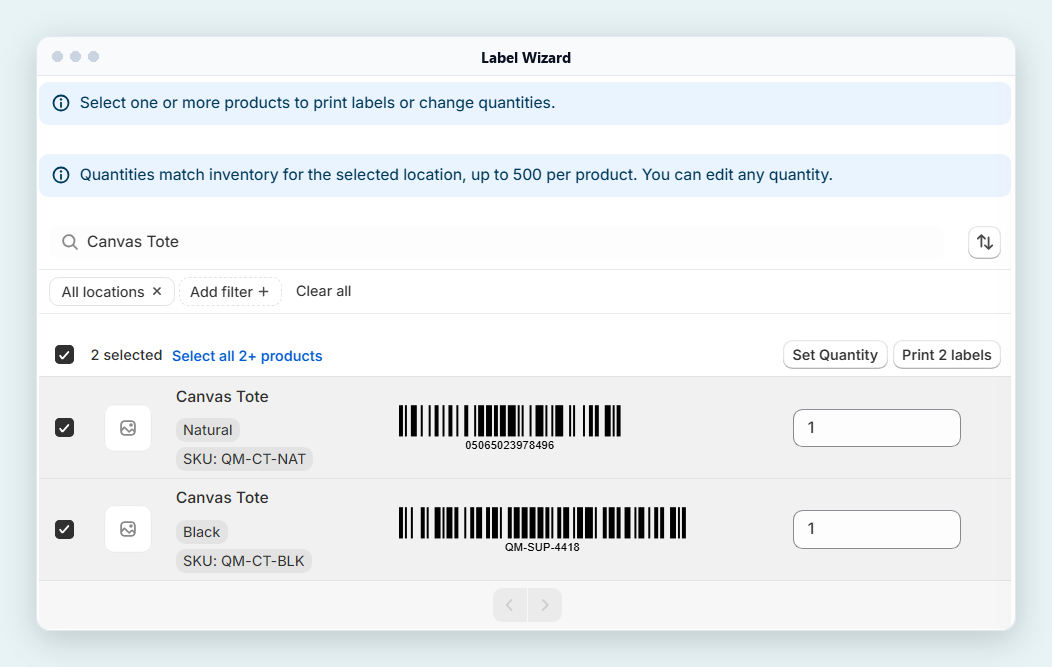
- In Label Wizard's print list, search for the product. The Barcode column shows the value each variant will print.
- In the label editor, switch the preview to the variant. The barcode element's Value shows the same code.
In our test, the print list showed 05065023978496 for Natural and QM-SUP-4418 for Black, the same codes the labels printed.
Can You Change Which Barcode Is First?
Shopify's Help page on barcodes doesn't describe changing the order or setting a main barcode. In our test, a barcode we added later went to the end of the list, which is why Black's GTIN, added back last, ended up second. On 3 November 2026 we also found no drag handle in the list, and dragging did not reorder it.
Based on that, these steps should put a different code first. We haven't tested them on a full list:
- Note every barcode on the variant and its type.
- Remove the barcodes currently above your chosen one, and save.
- Add the removed barcodes back in the order you want, and save.
Decide which code should come first before you reorder. Sales channels read the first barcode too, so the code you move to the top is also the one your channels get. Shopify says "The rollout to all merchants begins in December 2026", so the variant editor may look different from our screenshots.
If you're adding codes in bulk, check for duplicates too. Our guide to bulk assigning GTINs to Shopify variants covers a duplicate check after a batch.
Who Reads Which Barcode
| Reader | Which barcode | Source |
|---|---|---|
| Sales channels | The first barcode | Shopify changelog |
| Shopify POS search and scan | Any of a variant's barcodes, or its SKU | Shopify Help |
| Apps reading only the original Barcode field | One barcode, with no sign of the others | Shopify developer changelog |
| Shopify's free Retail Barcode Labels app | Shopify's Help doesn't say | Shopify Help |
| Label Wizard | The first barcode in the list, decoded in our test | Our decoded test |
Want to see which code your labels will carry? Label Wizard's print list and label preview show the value for each variant before you print. Previewing doesn't use credits.
What We Haven't Tested
We tested two variants with two barcodes each, printed to PDF as Code 128 at 203 DPI. We haven't tested physical prints, variants with more barcodes, other barcode formats for this question, or Shopify's December variant editor. We make no claim about how other label apps choose a barcode.
Label Wizard reads your product data and doesn't change it. It doesn't create barcode numbers; it prints the barcodes you already have.
“I can customise labels with product names, barcodes, SKUs, compare-at prices, and metafields.”
Frequently Asked Questions
Can a Shopify variant have more than one barcode?
Yes. Since September 2026 a variant can hold up to 20 barcodes, each with a type such as GTIN, UPC, EAN or Custom. Sales channels read the first one.
Which barcode does Shopify POS scan?
Any of them. Shopify Help says POS can find a product "by scanning or searching any of its barcodes, or its SKU."
Can I choose which barcode prints on my label?
Label Wizard prints the first barcode in the variant's list, or the SKU if you set the barcode element to SKU. To print a different code from the barcode list, that code has to come first, and then your sales channels read it too.
Does Label Wizard change my barcodes?
No. Label Wizard reads your product data and doesn't change it. You change barcodes in Shopify admin.
For printing a label for every variant, see our guide to printing barcode labels for Shopify variants.


