

Is this guide for you? It's for you if you sell in person with Shopify POS and want barcode labels on your stock. It isn't about shipping labels. It covers purchase orders only to say which apps list them. We make Label Wizard, one of the two apps in the steps. On 3 November 2026 it had 4 reviews on the Shopify App Store and no Built for Shopify badge.
Can Shopify POS Print Barcode Labels?
No, not from the POS app. Shopify's Help Center says "The Shopify POS app doesn't support barcode label printing directly." You print them from Shopify admin instead, with Shopify's free Retail Barcode Labels app or a label app, then stick the labels on your stock for POS to scan.
Shopify spells it out across two pages:
- The POS app has no print button for labels. Shopify says "You need to connect the printer to a desktop computer with the required software installed, even if you start printing from your POS device."
- The iPad needs a workaround. "You can't print barcode labels by using Retail Barcode Labels from the Shopify app on an iPad." If you have a supported Dymo printer, Shopify sends you to the Dymo Connect iPad app instead.
- Shopify admin does the printing. Shopify says "You can print labels with the Retail Barcode Labels app from the Shopify admin on desktop or within the Shopify app."
One merchant wrote in a Retail Barcode Labels review:
"We want store managers and staff to be able to print basic barcodes in store without having to leave the POS app."
Retail Barcode Labels review · April 2026 · United Kingdom
What Does Shopify POS Look For When You Scan a Label?
Shopify POS looks up two fields on each variant: its barcode and its SKU. Shopify's Help Center says that when you scan "a variant's barcode or SKU outside the search bar, it matches directly to that variant." So your label only needs a value that's already in one of those two fields.
Where you scan changes what POS does:
- Outside the search bar: POS goes straight to that variant.
- In the search bar: "the main product is displayed in the search results," and you pick the variant yourself.
- The same code on two products: "you're asked which product you want."
- More than one barcode on a variant: "A variant can have more than one barcode, and you can scan any of them." Shopify lets you add up to 20.
Print a value that's already in Shopify. A number made in other software only scans in POS once you add it to the variant's Barcode or SKU field.
To add a barcode, open the product in Shopify admin, select the variant under Variants, choose Edit barcodes, and type the code in Barcode.
The SKU counts too. Shopify says "You can also scan or search a variant's SKU." If your products have SKUs but no barcodes yet, your SKU can be the barcode on the label.
Our SKU vs UPC on Shopify guide explains which number is which.
How Do You Print POS Labels With Shopify's Free App?
Use Shopify's own free app, Retail Barcode Labels, in Shopify admin. Open Apps, then Retail Barcode Labels, and create a template in one of its 15 sizes. Click Print labels, pick your products, set how many labels each variant needs, and print.
Install Retail Barcode Labels from the Shopify App Store first. Then, in Shopify admin on your computer:
- Open the app. Go to Apps → Retail Barcode Labels.
- Create a template. Click Create template and give it a title. Pick your label under Label type, or choose Other label types, then a Paper brand and Paper code/model number.
- Choose what goes on the label. In Label preview, select the details you want, drag them into order, and click Create template.
- Pick your products. Click Print labels, select your products, and click Add.
- Set the quantities. In Products, enter how many labels each variant needs.
- Print. Check the Print job settings, click Print labels, then click Print. To keep a PDF copy, set Destination to Save as PDF.
You can also start from Products: select your products, open the menu, and choose Print barcode labels under Apps.
If a variant has no barcode, the app can make one from "the last 8 digits of the variant ID." The same Help page gives two warnings.
Two products can sometimes get the same code, and POS then asks which product you want. And if you create codes for products that already have barcodes, the app overwrites them. Shopify also says these codes "aren't suitable for Google Shopping because multiple stores can share them."
In our test store on 4 November 2026, the app's Getting started dialog offered only Skip or Create barcodes, and one click made codes for every variant that had none: 4 of 47. It skipped the 43 that already had a barcode, and it had no product picker.
Moving away from the free app later? In our test, Label Wizard printed a barcode that Retail Barcode Labels had created, and it decoded to the same value. You can keep your barcodes when you switch, so the codes on the labels already on your stock stay in Shopify.
Where Does Shopify's Free Label App Stop?
Shopify's free Retail Barcode Labels app stops at five points, all from Shopify's Help Center. It has 15 label sizes and no way to add yours, makes 8-digit Code 128 barcodes only, may not display special characters correctly, and has no CSV upload. Printing from purchase orders is still an open request on Shopify Community.
- Label sizes: "You can't add custom label sizes that aren't already available in the Retail Barcode Labels app." The app lists 15. To use another size, see how to print Shopify barcode labels on a custom label size.
- Barcode type: "The Retail Barcode Labels app only generates Code-128 barcodes."
- Codes it makes: "The app generates 8-digit barcodes."
- Special characters: text with accents or symbols "might not display correctly on labels." Shopify's advice is to "manually retype the product information or use a third-party app that supports special characters."
- Bulk printing: "The app doesn't support automatic bulk printing or CSV upload options for selecting variants and quantities." You still pick each variant yourself. Shopify's reply on one review says its bulk option "only matches label counts to stock on hand."
If you print many products, you'll feel that last one. Retail Barcode Labels has a 2.3 rating from 478 reviews on the Shopify App Store, and one reviewer wrote:
"It is so time consuming having to individually select each product and fill in the amount of labels that I want to print."
Retail Barcode Labels review · November 2025 · Ireland
Label Wizard can start every quantity at 1 label per product or at Inventory on hand, but you still pick the products.
Printing labels for just the items on a purchase order is the other gap. Neither Shopify POS nor the free app does it. A Shopify Community thread asking for it has run since July 2023, and a Shopify staff member wrote there in August 2023:
"At this time, I don't have any further update as to if/when this feature will be made available."
Shopify staff, Shopify Community
A newer request, posted in August 2026, asks Shopify to let Retail Barcode Labels pull in every item from a purchase order or transfer. It had no accepted answer in November 2026.
Which App Should a Shopify POS Store Use Instead?
It depends on the job. If one of Shopify's 15 sizes fits, keep the free app; for CSV upload or 200 free labels a month, look at Yanet Retail Barcode Labels. For the SKU as the barcode, the compare-at price on the label or pay per label, use Label Wizard, and both apps take your own label size.
Match your job to the app:
- If one of Shopify's 15 label sizes fits and an 8-digit Code 128 barcode is enough, use Shopify's free Retail Barcode Labels app.
- If you want CSV upload or a bigger free allowance, Yanet Retail Barcode Labels lists 200 free labels a month and CSV upload, and has a 4.9 rating and a Built for Shopify badge, according to its listing on 3 November 2026.
- If you want an app that works with Shopify POS for scanning, RF: Barcode Labels Generator's listing says it works with Shopify POS and lists Shopify POS scanning on its paid Growth plan. It doesn't say it prints from POS, and we haven't tested it.
- If you want the SKU printed as the barcode, the compare-at price on the label, or accented, Cyrillic or Chinese names, use Label Wizard. You pay per label, and previews are free. Like the other label apps here, it also takes your own label size.
- If you want labels for just the items on a purchase order, Label Wizard can't do it. Yanet and CTS Multi Barcode Labels list printing from purchase orders in Stocky, Shopify's older inventory app. Shopify says "The Stocky app will no longer be available after August 31st, 2026," so ask them whether that works with Shopify's own purchase orders. One newer app, AOP PO Label Printer, says it prints "barcode labels from your purchase orders." It had no reviews in November 2026, so test it on one purchase order first.
- If you print from an iPad, Shopify says to use the Dymo Connect iPad app with a supported Dymo printer. Retail Barcode Labels can't print there, and we haven't tested Label Wizard on an iPad.
Shopify POS stops before printing. Shopify's free app stops at its 15 sizes and Code 128 codes, and special characters may not print correctly. Label Wizard prints the barcode or SKU already on each variant, on a template sheet or roll, or your own label size, from Shopify admin.
Label Wizard has limits of its own. It doesn't:
- print from the POS app (it runs in Shopify admin);
- print labels from purchase orders;
- take a CSV upload;
- create barcode numbers. Its listing says it "Prints the barcodes you already have. Does not create barcode numbers."
Our barcode label apps for Shopify, compared puts more apps side by side.
Want the SKU as the barcode, or the compare-at price on the label? Try it on your products: Start Free gives you 20 free labels a month, then $0.03 each, and previews don't use credits.
How Do You Print POS Labels With Label Wizard?
In Shopify admin, open Label Wizard and add a Barcode element set to Barcode or SKU. Then open Print, pick your products, set quantities to one per product or inventory on hand, choose your sheet or roll, and print the PDF from your computer.
Here are the steps, shown with products from our test store:
- Add a Barcode element. In Shopify admin, go to Apps → Label Wizard, open a label design, and add a Barcode element. Set its Field to Barcode to print each variant's Barcode field.
- Or print the SKU instead. Set Field to SKU, and the preview shows your SKU as a barcode. Add a text element for the SKU too, so people can read it.
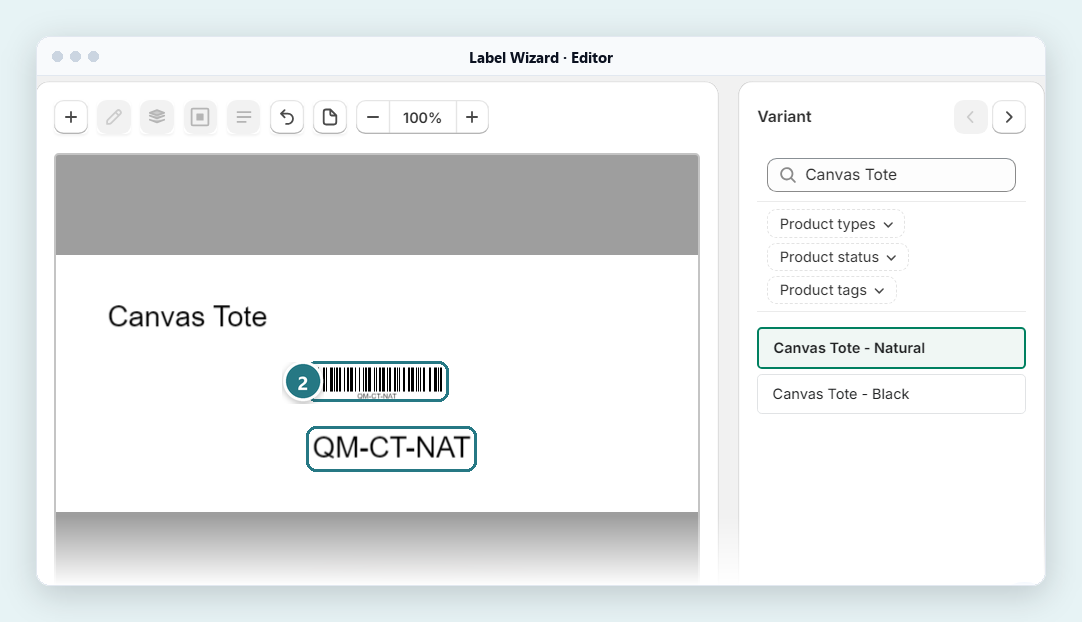
The barcode element's Field is set to SKU, so the preview draws the SKU as a barcode (2). Field offers Select, Barcode, SKU and Static text. - Pick your products. Open Print and choose the products you want. Each variant gets its own label, and the print list shows its barcode.
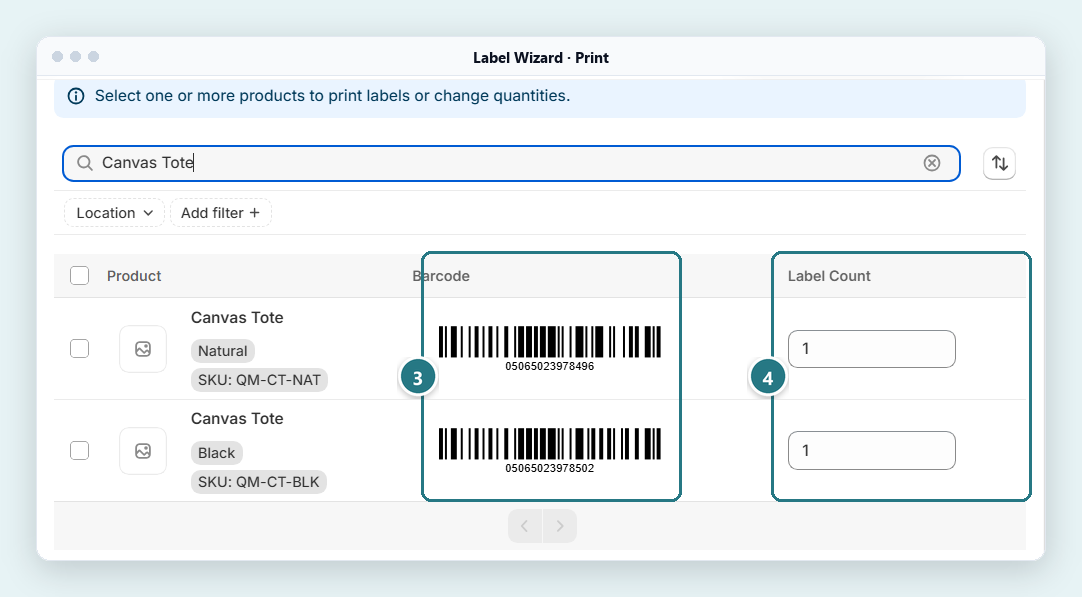
Each variant gets its own row with its barcode (3). Set how many labels each one prints in Label Count (4). - Set the quantities. Choose 1 label per product or Inventory on hand as the default. Label Wizard fills in quantities from your stock, up to 500 per product, and you can edit any of them.
- Choose your sheet or roll. Pick a sheet on Letter paper, or Continuous Feed for a roll printer. Check the layout preview. Can't find your sheet? Check that your design's label size matches it: for our 2.50 x 1.00 inch design, Label Wizard offered Online Labels OL4607 (24 labels on a Letter sheet), Avery 94221, our own custom Letter sheet and Continuous Feed. In our test, the picker listed only sheets with our design's label size, plus Continuous Feed, so make your design the size of your sheet first.
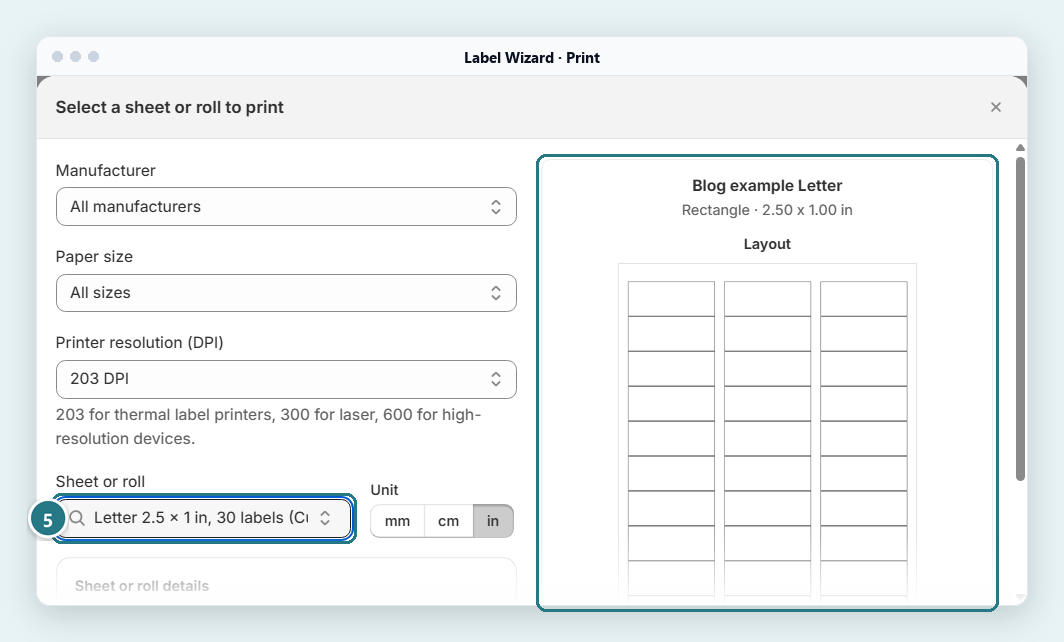
Pick your sheet or roll by name (5), here our own Letter sheet of 30 labels, and check the layout preview before you print. - Print. Label Wizard opens your computer's print dialog or downloads a PDF. You choose which under Settings → Print action → When you print.
Testing first? Check the default quantity before you print. If it says Inventory on hand, one run can print hundreds of labels, and Start Free charges $0.03 a label after the first 20.
Set it to 1 label per product, print one page on plain paper, and use previews, which don't use credits. If you label every delivery, Label Wizard's Unlimited plan costs $24.99 a month or $199 a year, with no per-label fee.
Barcode field empty? Label Wizard prints the rest of the label and leaves the barcode's space blank. Fill in the Barcode field in Shopify or switch the element to SKU.
Label Wizard's print screen also has a Printer resolution (DPI) setting, in dots per inch, with this hint: "203 for thermal label printers, 300 for laser, 600 for high-resolution devices."
Using a label size that isn't in the library? Set it up first with our custom label size guide. To print a whole range, see how to print barcode labels for every product variant.
Will the Barcodes on Your Labels Match What's in Shopify?
Yes, in our tests from 3 to 5 November 2026: each Label Wizard barcode decoded to the value stored in Shopify, as Code 128, from a Barcode field and from a SKU. A variant with an empty Barcode field printed no barcode. We decoded the PDFs digitally and didn't scan paper labels.
We printed from Label Wizard (version 20261027.1) on our test store and read each barcode from the PDF with decoding software:
- A barcode from a variant's Barcode field decoded to the stored value,
05065023978496, as Code 128 (4 November 2026). - With the Barcode element set to SKU, the SKU
QM-LINEN-BLU-SMdecoded as Code 128 (5 November 2026). - A barcode that Retail Barcode Labels created,
65928839, printed from Label Wizard and decoded to the same value as Code 128 (4 November 2026). - A variant with two barcodes printed the first one. There's no setting to pick another.
- Accented, Cyrillic and Chinese text (
ěščřžúů,Crème Brûlée,Привет,中文) printed.
Shopify says POS looks up that decoded value. A variant with two barcodes still works, because POS can scan any of a variant's barcodes.
What we didn't test: a printed paper label, or a scan with a POS scanner. Before you print a full run, print one label and scan it at your own till.
Shopify POS, Retail Barcode Labels or Label Wizard: Which Does What?
Shopify POS scans labels but prints none. Retail Barcode Labels prints free from Shopify admin on 15 sizes and makes Code 128 codes; Label Wizard prints from Shopify admin on a template sheet or roll or your own label size, with the barcode or SKU as the barcode. The Yanet column comes from its listing, and we didn't test it.
| Job | Shopify POS | Retail Barcode Labels | Yanet Retail Barcode Labels | Label Wizard |
|---|---|---|---|---|
| Print from the POS app | No | No. Works in Shopify admin and the Shopify app, not on an iPad | Not stated; listing says it works with Shopify Admin | No, it runs in Shopify admin |
| Print from Shopify admin on a computer | Not applicable | Yes | Yes, per its listing | Yes |
| Label sizes | Not applicable | 15, and you can't add one | Various paper sizes and custom size, per its listing | Avery, Online Labels, Dymo and Uline templates, or your own size |
| Where the barcode comes from | Scans a variant's barcode or SKU | The variant's barcode, or an 8-digit code it makes | Its listing says it auto-generates barcodes; not tested | The variant's Barcode or SKU field |
| Barcode formats | Not applicable | Makes Code 128 only | Several formats, per its listing; not tested | Automatic, EAN-13, UPC, GTIN-14, GS1-128 and Code 128 offered; Code 128 decoded in our test |
| Accented and non-Latin text | Not applicable | "might not display correctly" | Not tested | Czech, French, Cyrillic and Chinese printed in our test; Greek not tested |
| Many products at once | Not applicable | You pick the products; quantities by hand or matched to stock; no CSV upload | Multi-select or CSV file, per its listing | Quantities default to 1 per product or inventory on hand; no CSV upload |
| Print from purchase orders | No | Requested on Shopify Community | Lists Stocky purchase orders | No |
| Creates barcode numbers | Not applicable | Yes, 8 digits | Lists barcode generation | No |
| Price to start | Not applicable | Free | Free plan: 200 labels a month | Start Free: 20 free labels a month, then $0.03 each |
Frequently Asked Questions
Does Shopify allow you to print labels?
Yes, from Shopify admin on a computer, with Retail Barcode Labels or a label app. Shipping labels are a separate job, printed from your orders. You can't print barcode labels from the POS app.
Is there a free way to print Shopify POS barcode labels?
Yes. Retail Barcode Labels is free, and Yanet Retail Barcode Labels lists 200 free labels a month on its free plan. Label Wizard gives you 20 free labels a month, then $0.03 each.
Does Shopify have a barcode generator?
Yes, two. Retail Barcode Labels gives a variant with no barcode an 8-digit Code 128 code, from the last 8 digits of its variant ID. Shopify's free online barcode generator emails you a Code 128 barcode as a PNG.
Label Wizard doesn't create numbers, but it can print your SKU as a barcode. If a retailer asks for UPC or EAN barcodes, those numbers come from GS1, not from a generator. Our SKU vs UPC guide explains the difference.
What label printers work with Shopify?
For label printers, Shopify supports only the models on its barcode printers list. It also says you can use a standard desktop printer and "print to Avery Standard (5160) labels." It names the DYMO LabelWriter 450, 550 and Wireless, the Zebra ZD220, ZD420 and ZD421, the Zebra ZSB Series, and a Bixolon model in the UK. Its 15 label sizes are Dymo, Avery and Zebra stock.
Label Wizard makes "print-ready PDFs for laser, inkjet, direct thermal and thermal transfer printers, on sheets, rolls or continuous feed." Print one test page on yours first.
How do I connect my label printer to Shopify?
You don't connect it to POS. You connect it to your computer and install its software, as Shopify's barcode printers page explains. Label Wizard then opens your computer's print dialog or downloads a PDF, so you print to the printer like any other document.
What's the fastest way to print barcode labels for all my products?
Pick the products in one print run and let the quantities fill in from stock. Retail Barcode Labels has no CSV upload or automatic bulk printing, but it can match label counts to stock. In Label Wizard, every variant gets its own label, and quantities can default to 1 label per product or to inventory on hand.
Label Wizard has no CSV upload either. If you need CSV upload, Yanet Retail Barcode Labels lists it.


